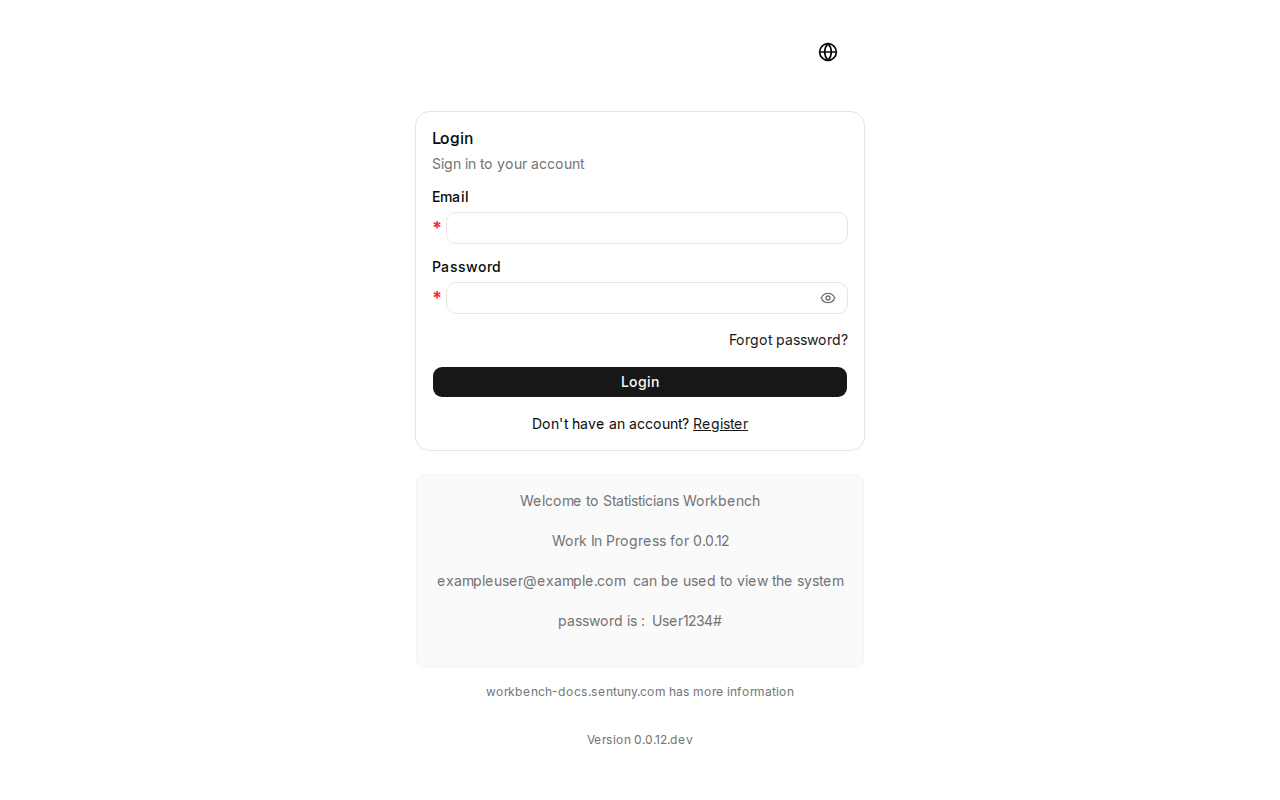
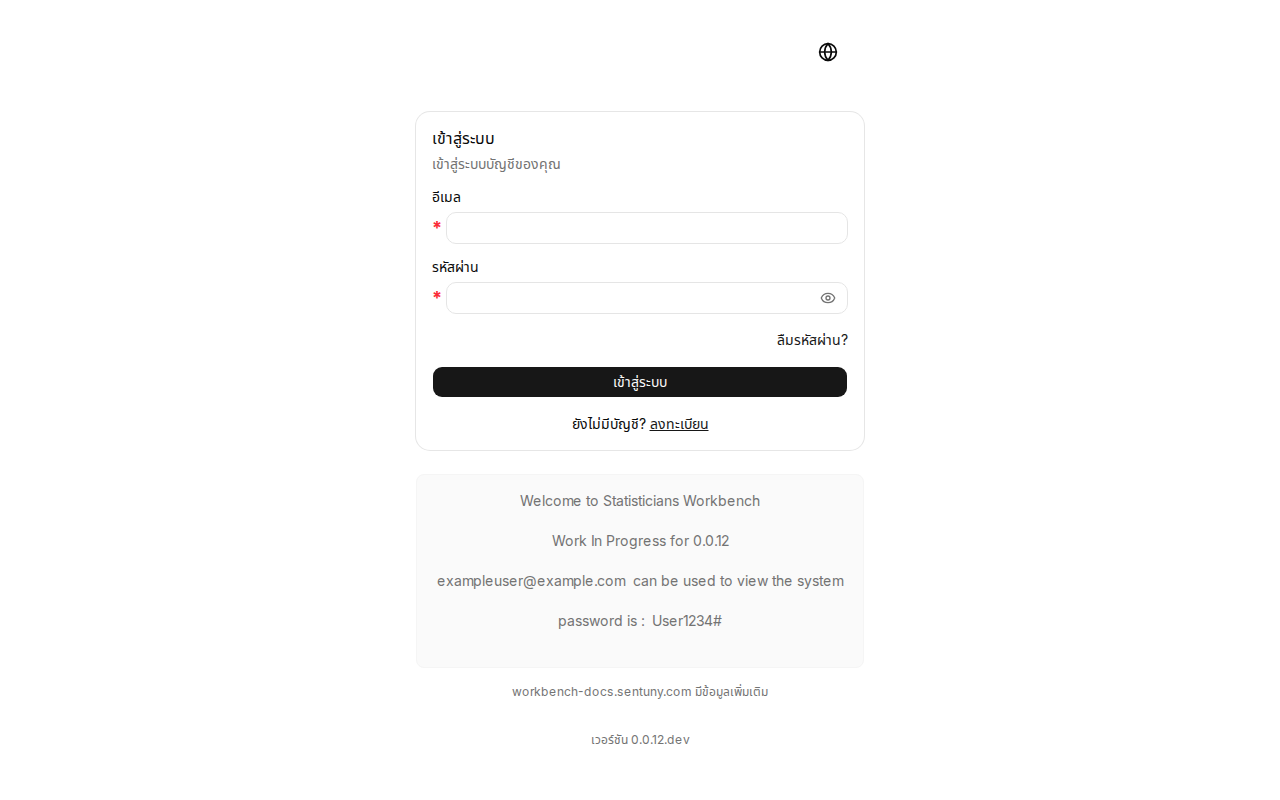
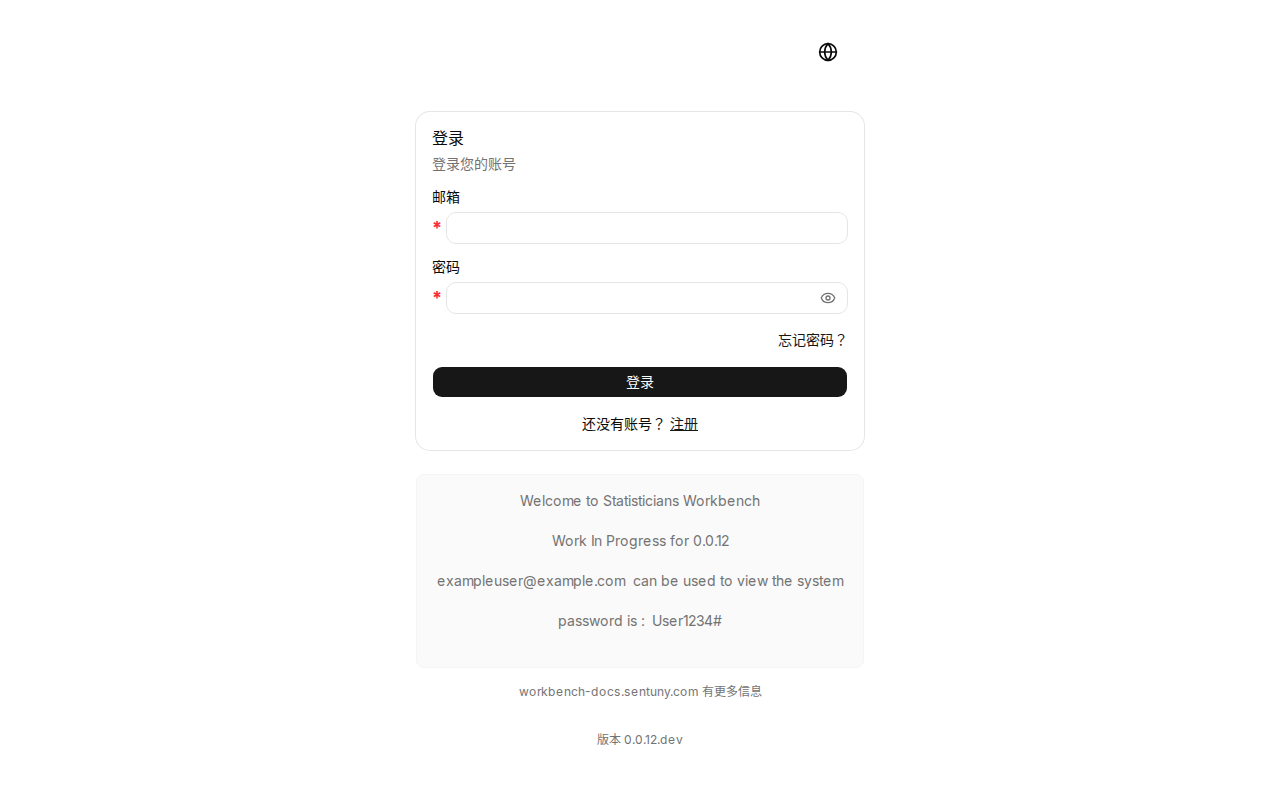
1. Login Screen
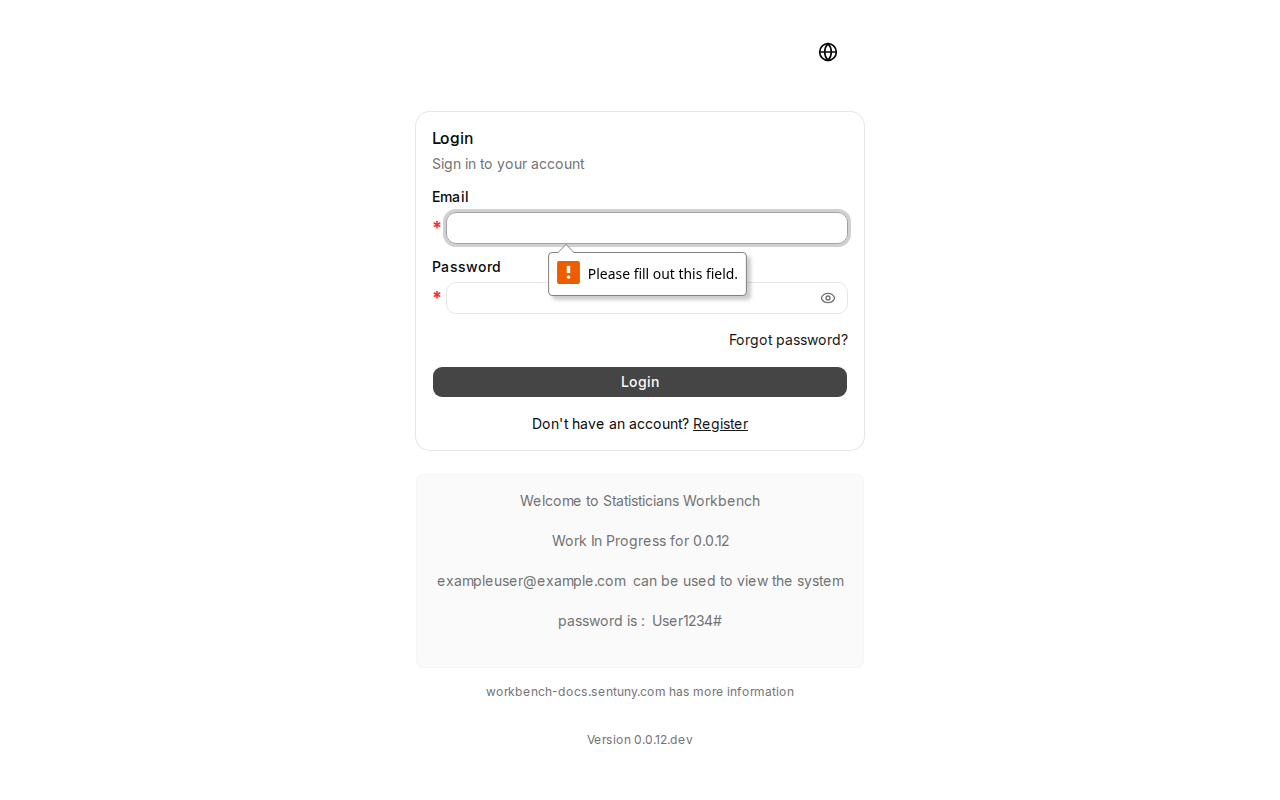
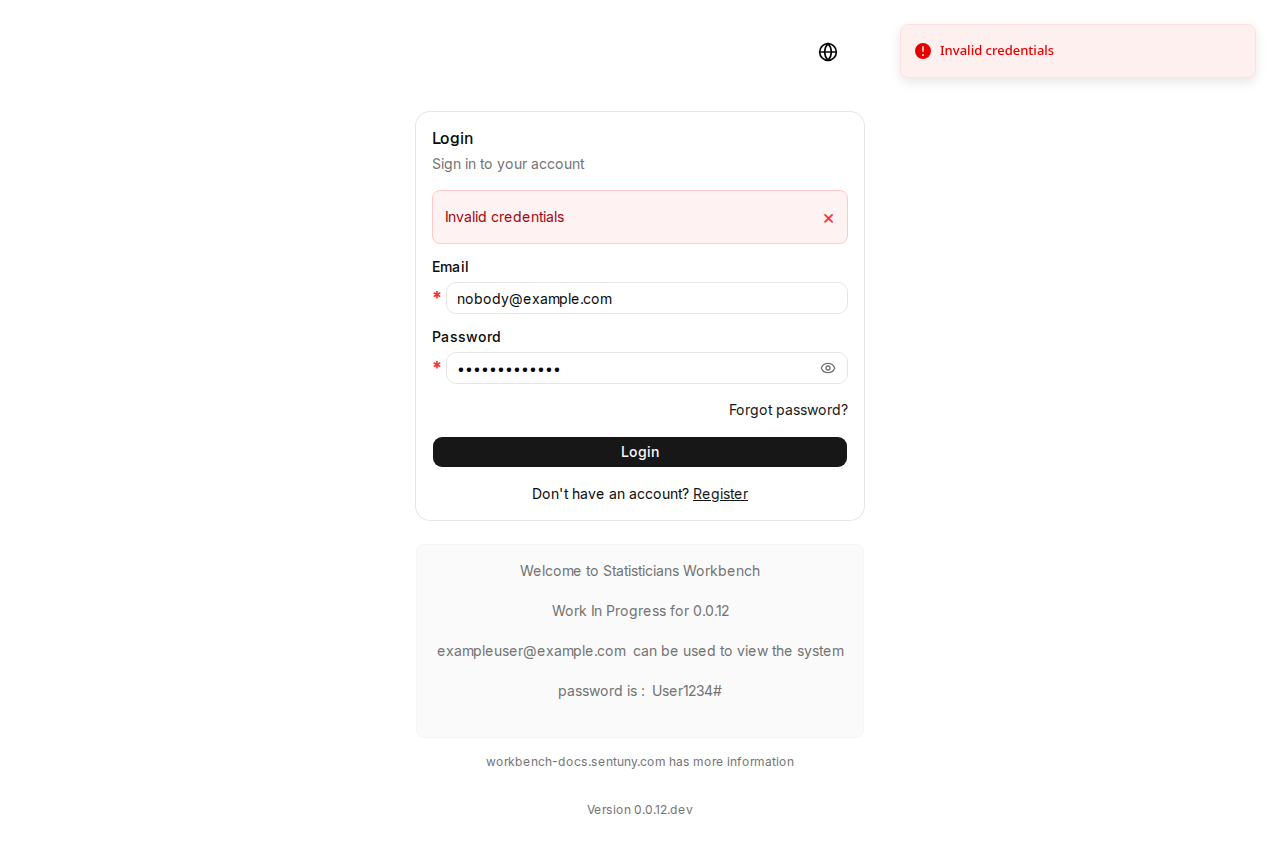
The login screen is the first page every user sees. It accepts email and password, validates credentials against the database, and redirects authenticated users to the landing page. Links to self-registration and password reset are provided below the form. Invalid credentials and empty submissions produce persistent inline error messages.
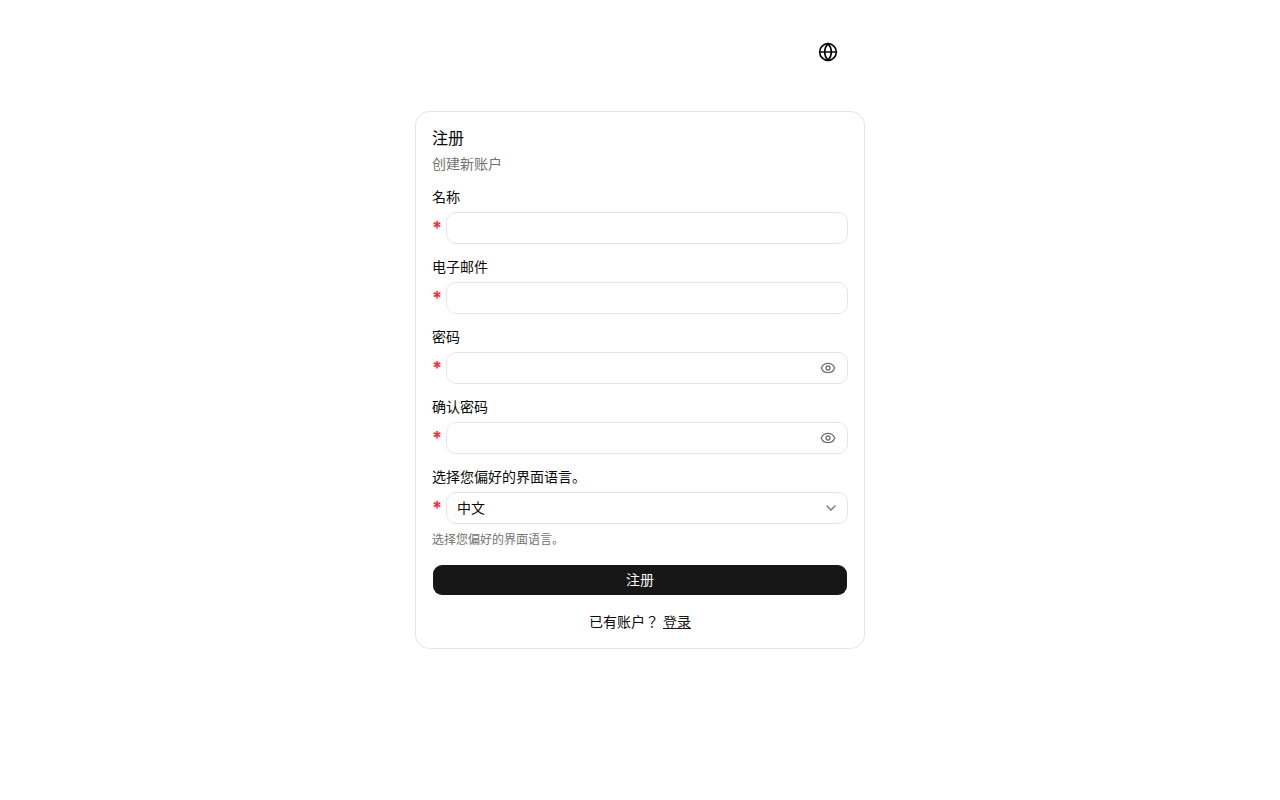
2. Self-Registration
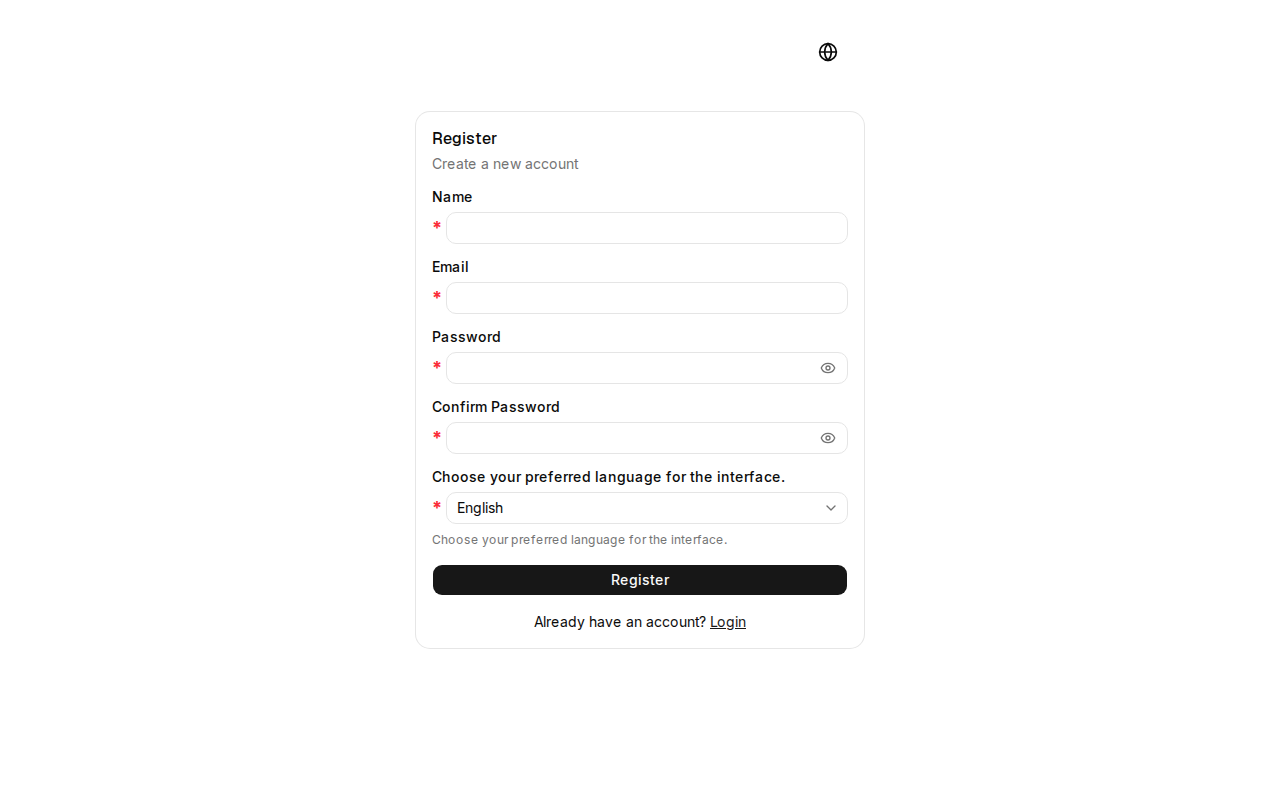
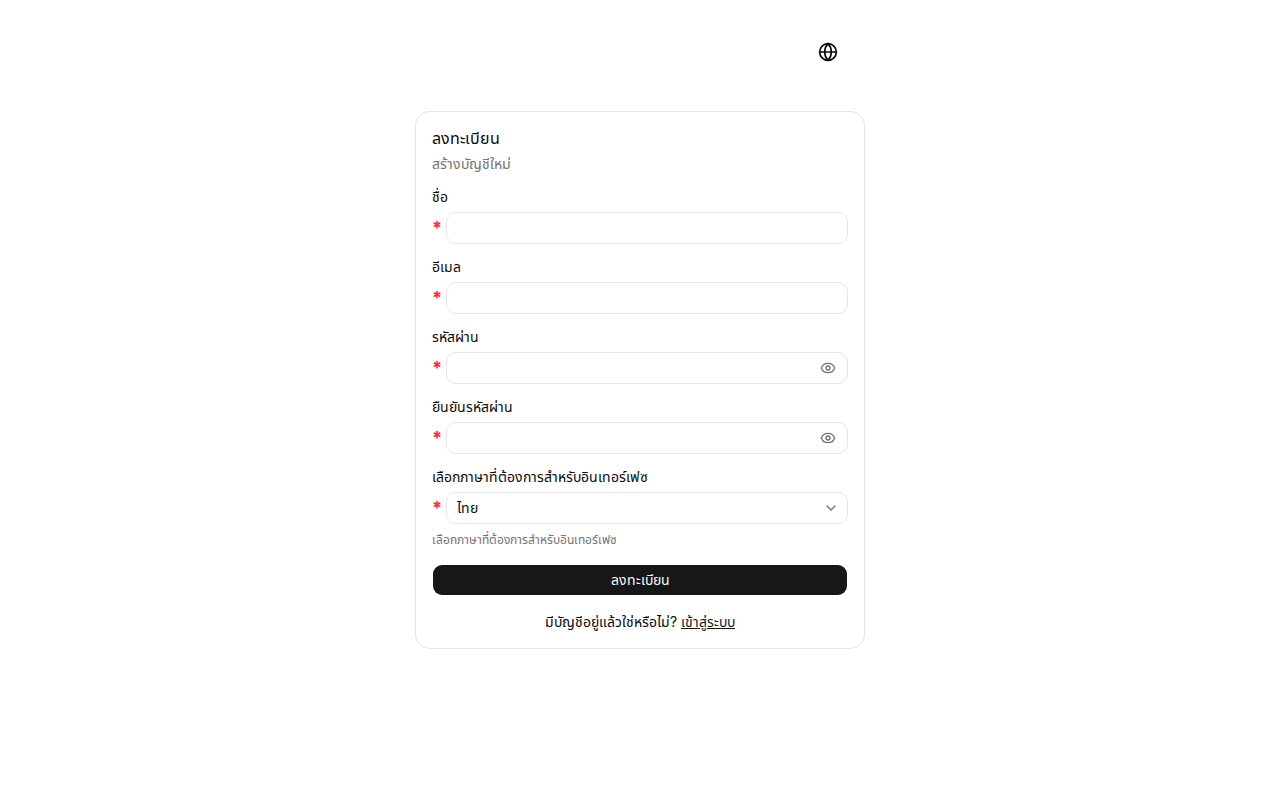
New users create an account by providing their name, email, and password. The registration form validates inputs — duplicate emails are rejected, weak passwords flagged, and required fields highlighted. On success, a verification email is sent and the user is prompted to check their inbox.
3. Landing Page (Post-Login)
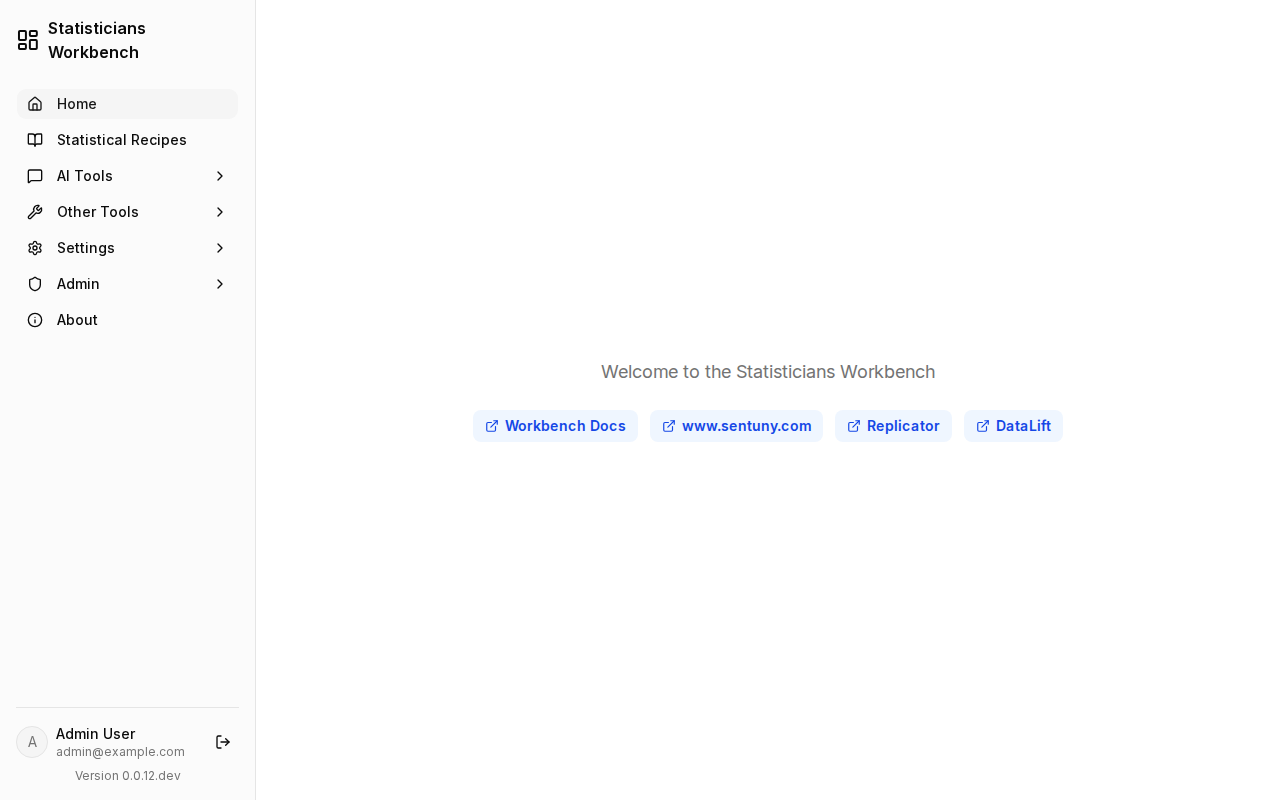
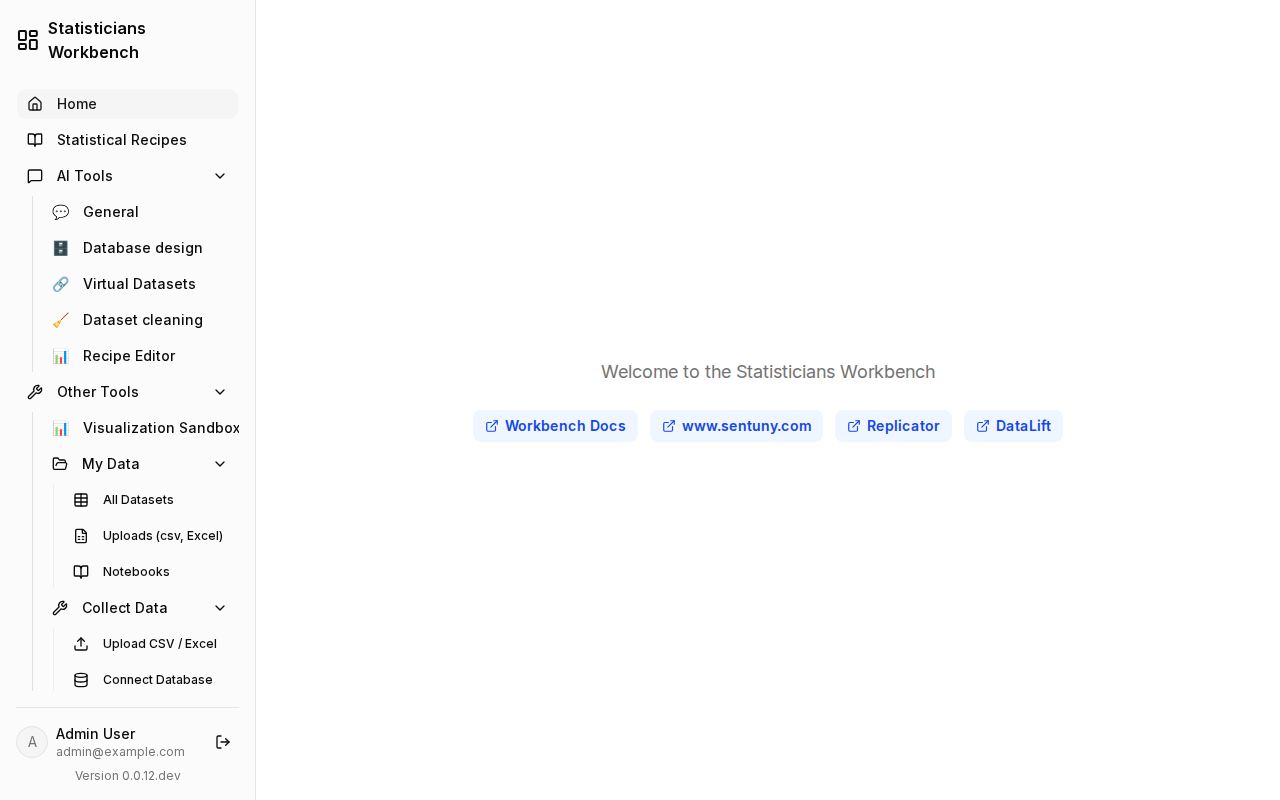
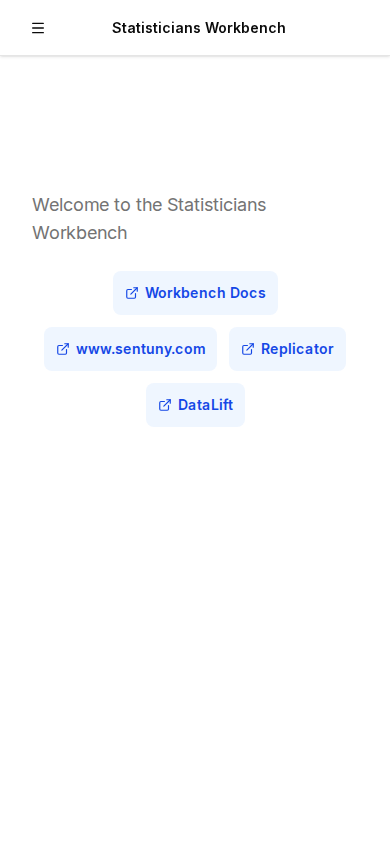
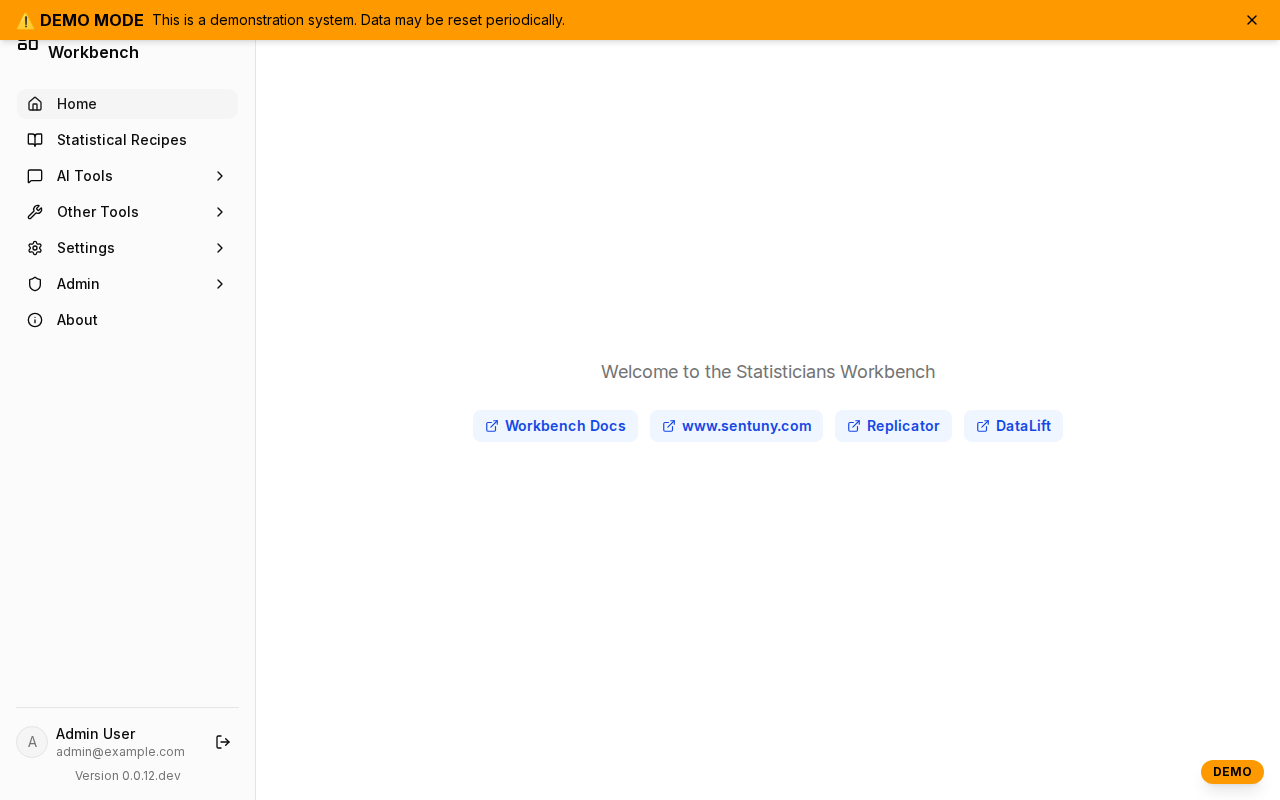
After login, users arrive at the homepage. The sidebar on the left provides navigation to all sections — Recipes, AI, Statistics, My Data, and Settings. The main area shows recent recipes, dataset cards, and platform status. Admin users see additional links for user management and platform configuration.
4. Statistical Recipes
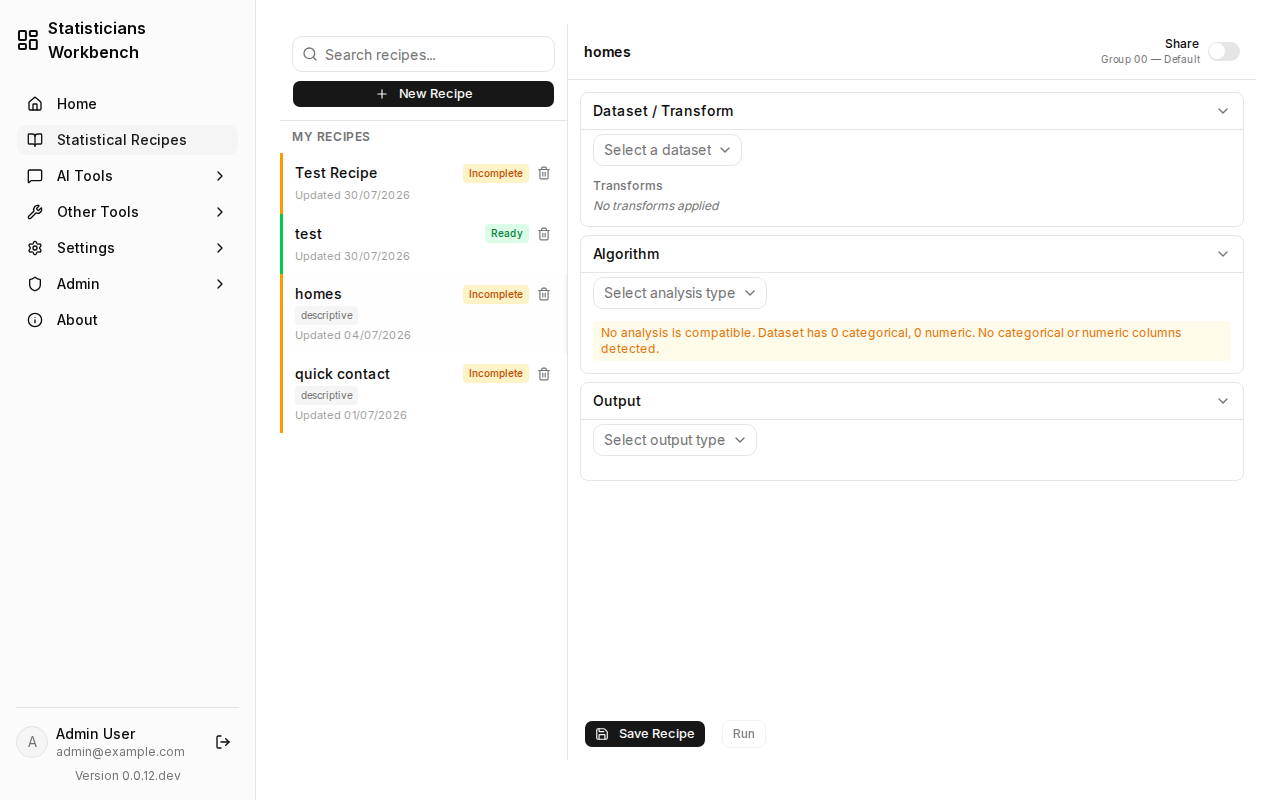
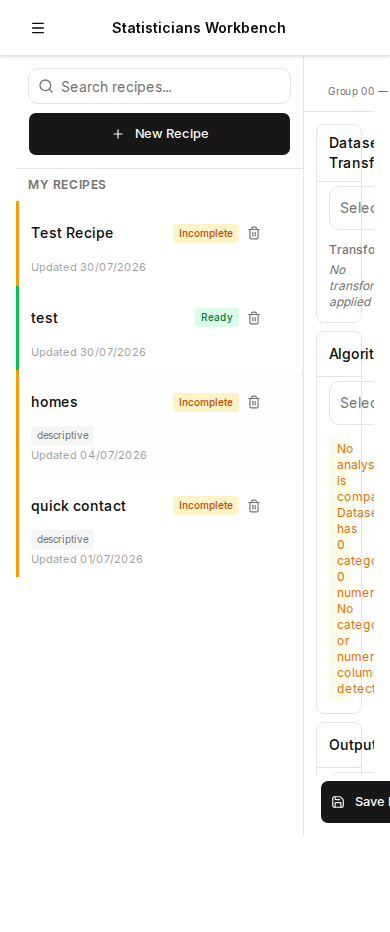
The recipe list and editor — the central workspace. A master-detail layout shows saved recipes on the left and the active recipe on the right. Recipes are built as a pipeline of stages — Dataset/Transform, Algorithm, Output — each with its own configuration panel.
🤖 AI Tools
5. AI Tools — General AI Chat
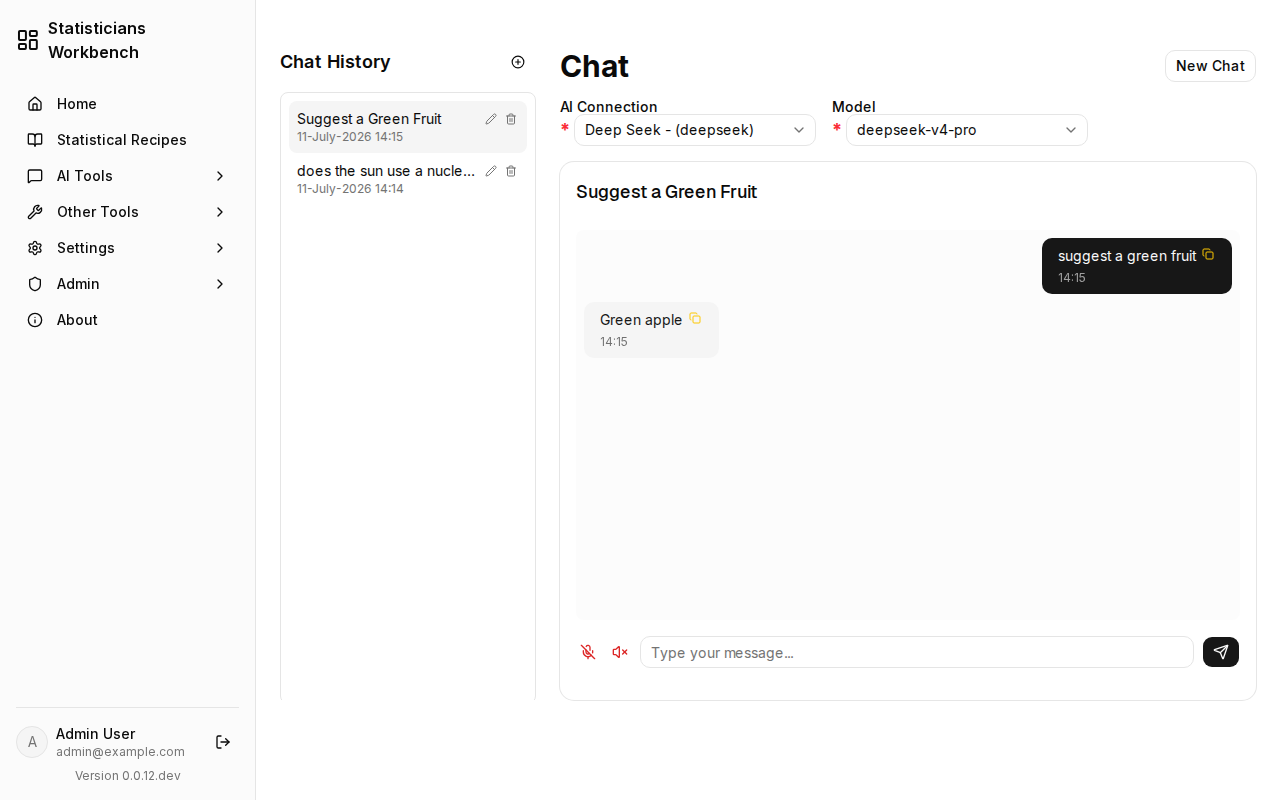
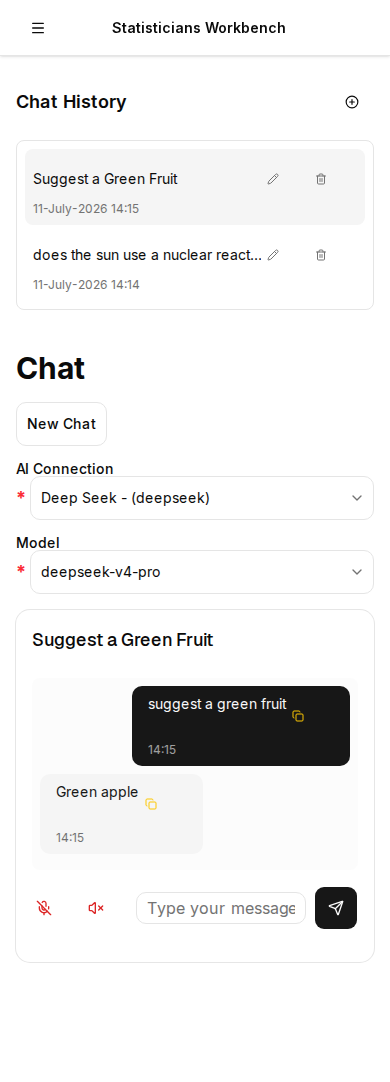
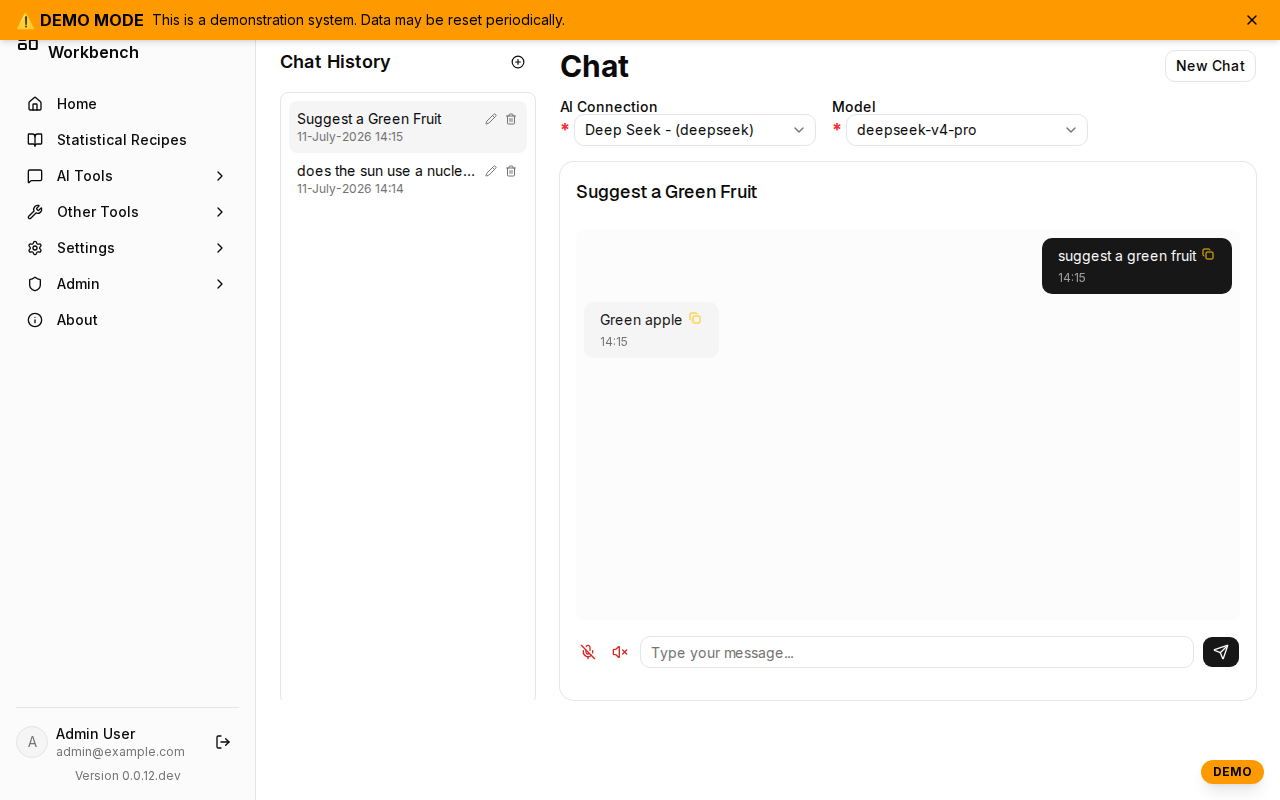
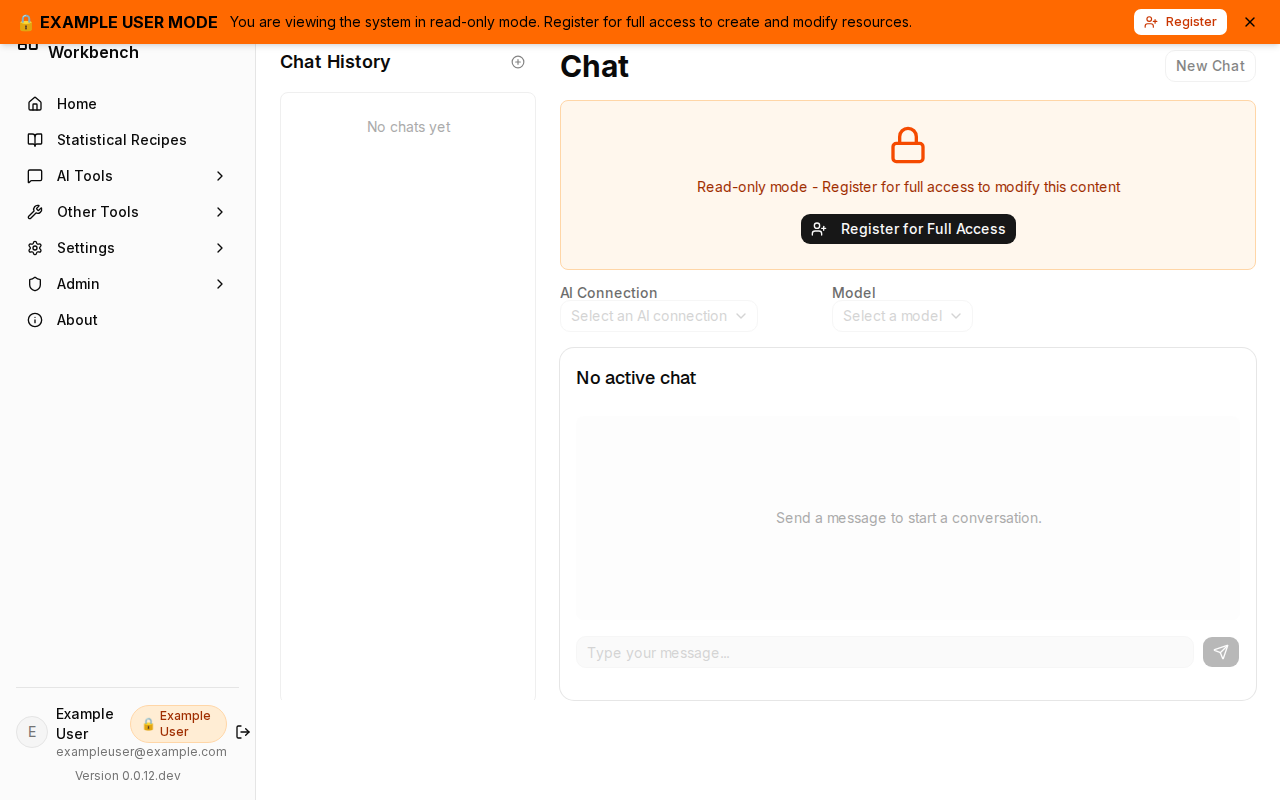
The general-purpose AI chat panel. Connects to cloud AI providers or local LLMs. AI acts as a concierge — suggesting recipe stages, interpreting statistical output, and answering questions about datasets — but never modifies data autonomously. Every suggestion is recorded in an audit trail.
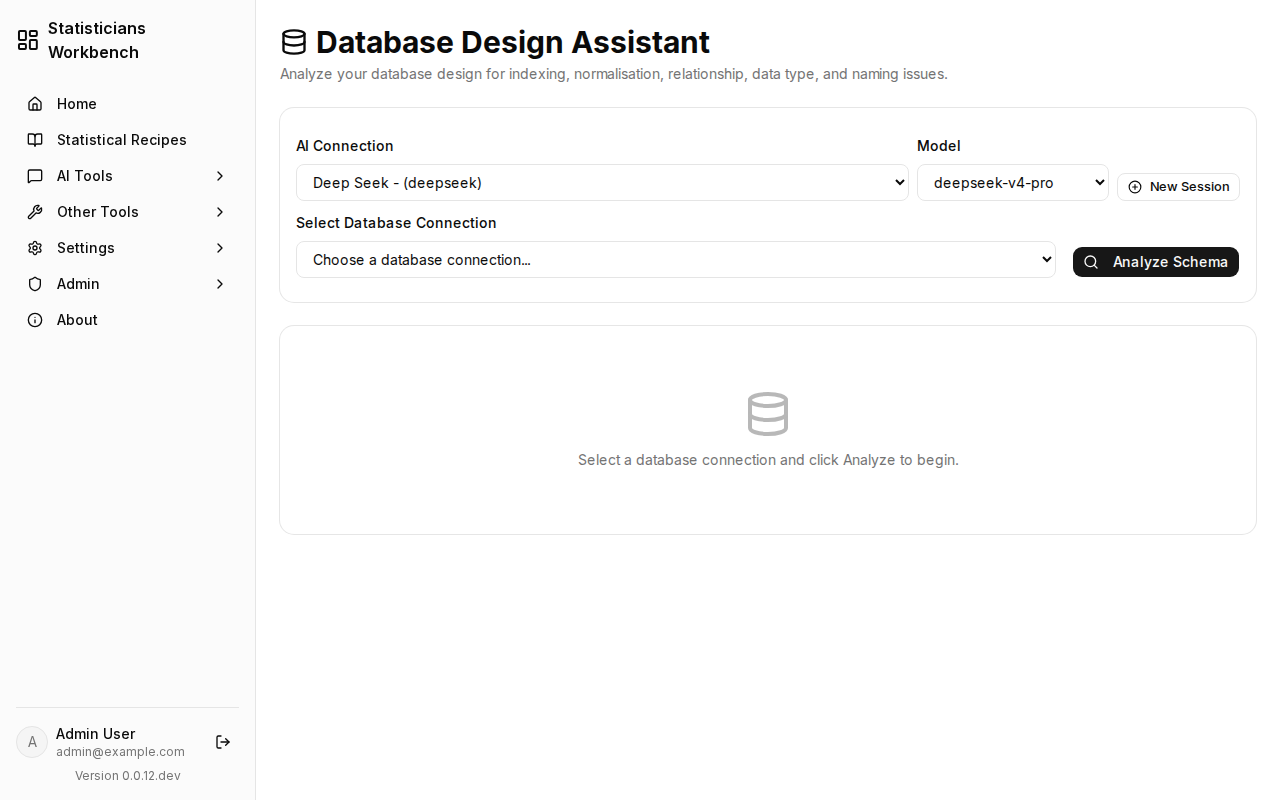
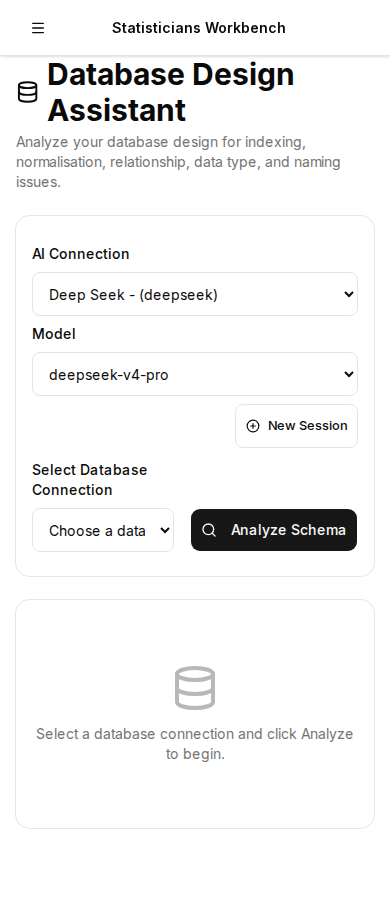
6. AI Tools — AI Database Design
Schema-aware AI designer. Maps business requirements to table structures, relationships, and constraints. Generates DDL and suggests indexing strategies. Connected to the database connections manager for real-time schema browsing.
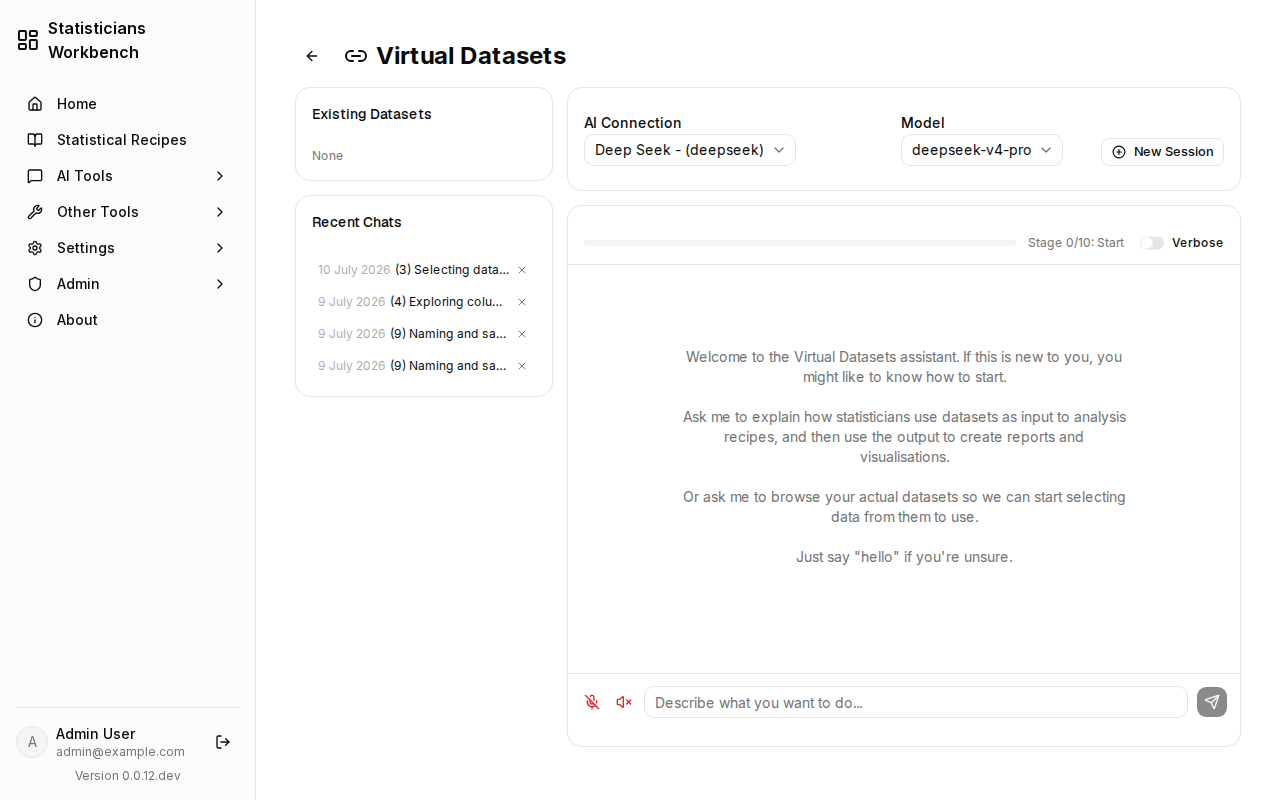
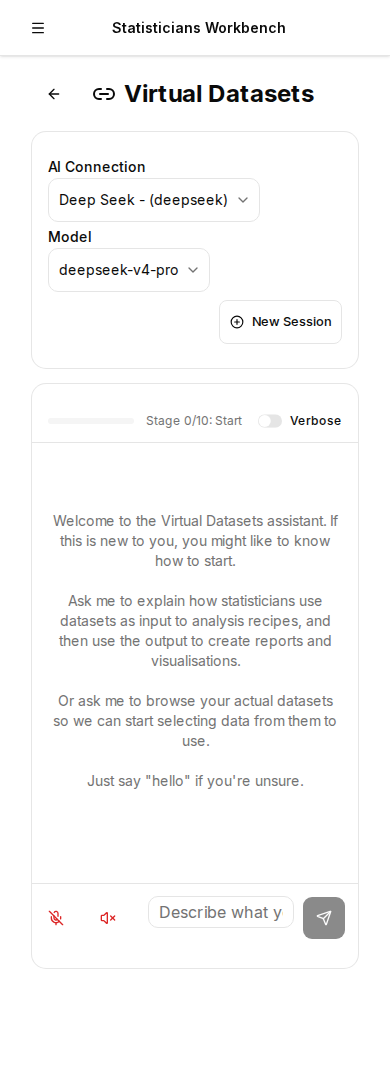
7. AI Tools — Virtual Datasets
Federated SQL views across physical datasets. Define virtual datasets by joining tables from multiple database connections. AI assists with query construction and validation. Results are queryable like any physical dataset.
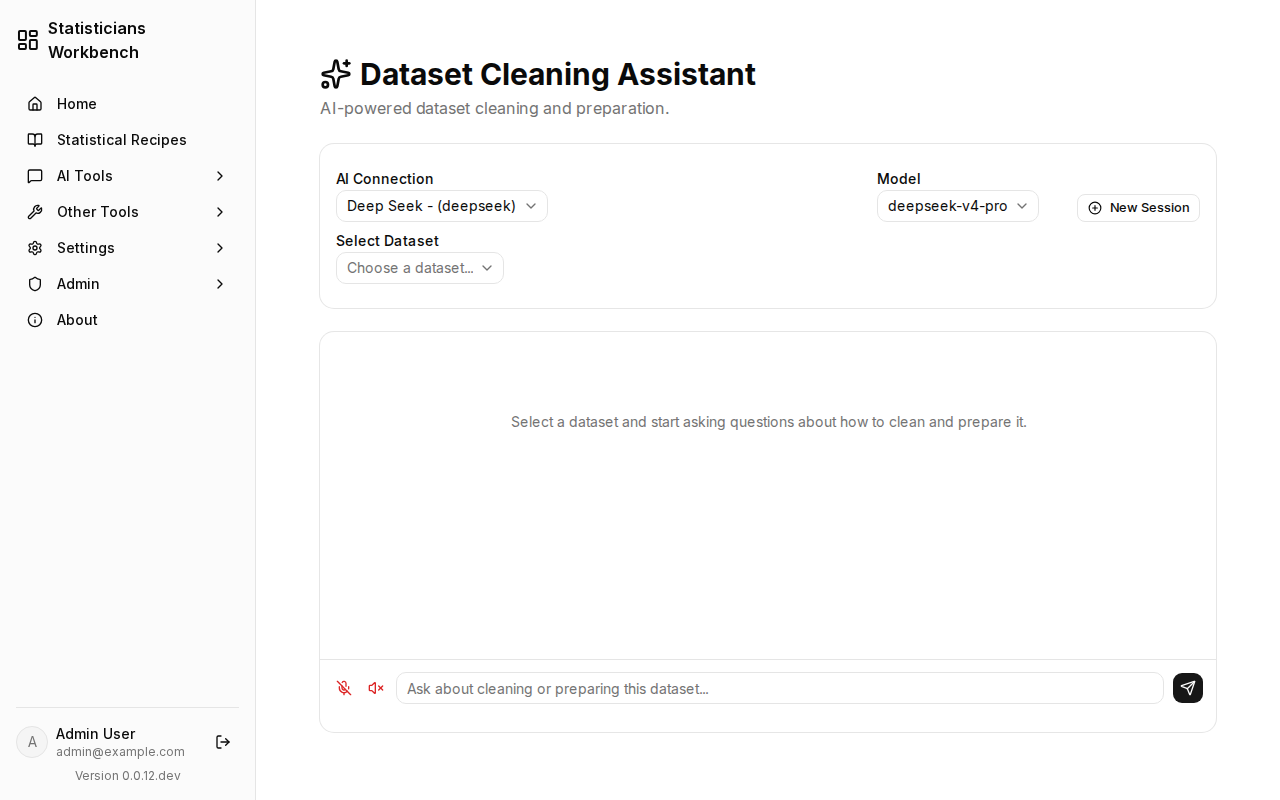
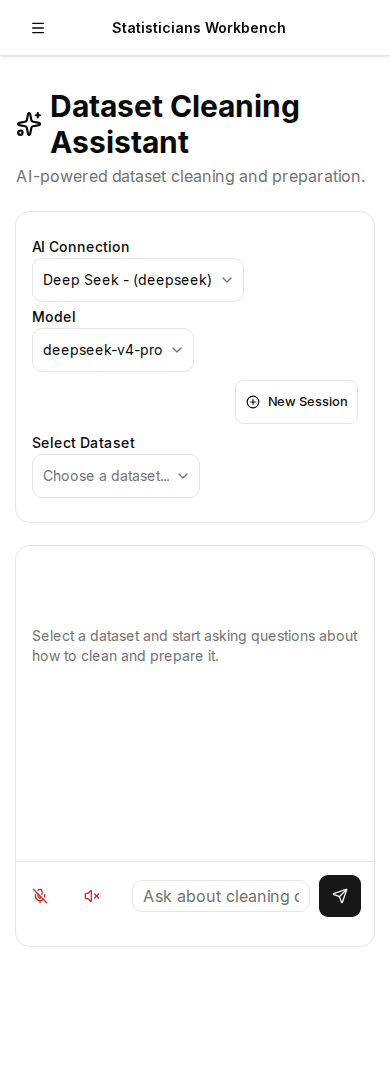
8. AI Tools — AI Dataset Cleaning
AI-assisted data cleaning panel. Detects outliers, suggests missing-value imputation strategies, and previews type coercion. Each suggestion is presented for user approval — the AI recommends, the user decides.
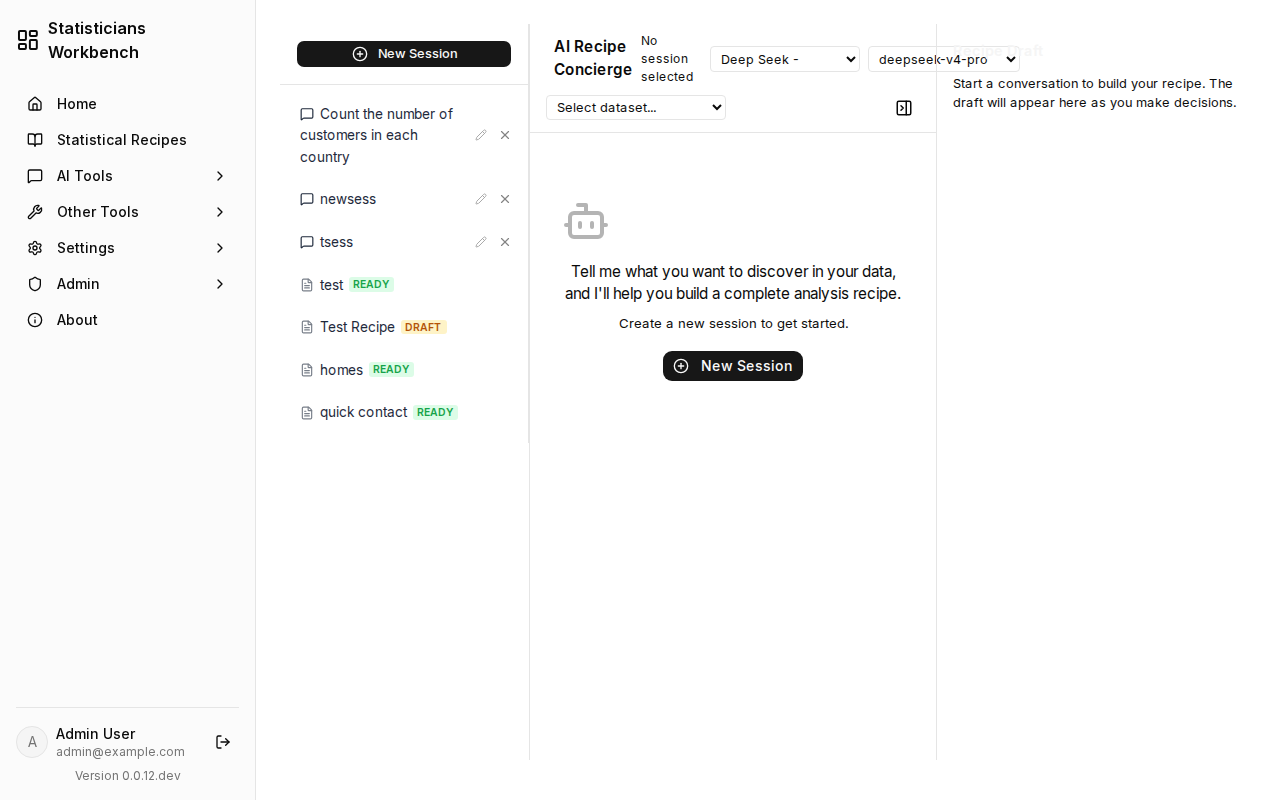
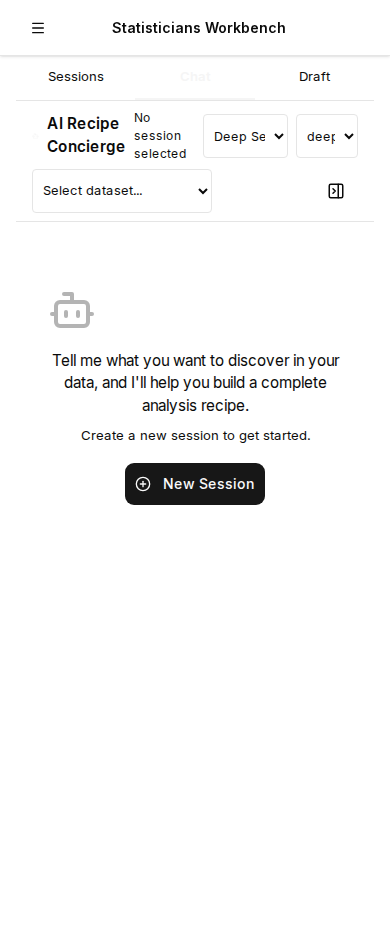
9. AI Tools — AI Analysis Rules
AI-guided recipe construction. Describe the analysis in natural language and the concierge proposes a pipeline of stages with configured algorithms. Users review, adjust, and save the generated recipe.
🔧 Other Tools
10. Other Tools — Visualize / Statistics & Charts
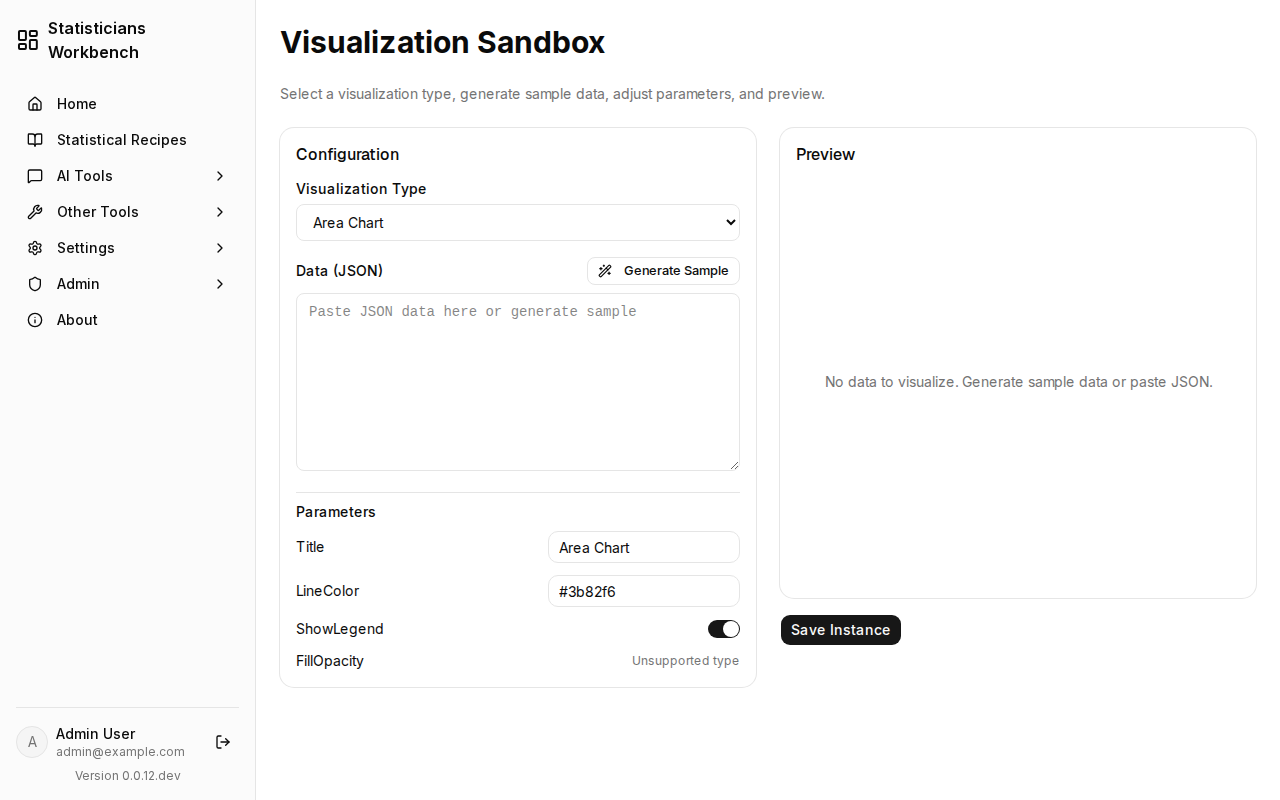
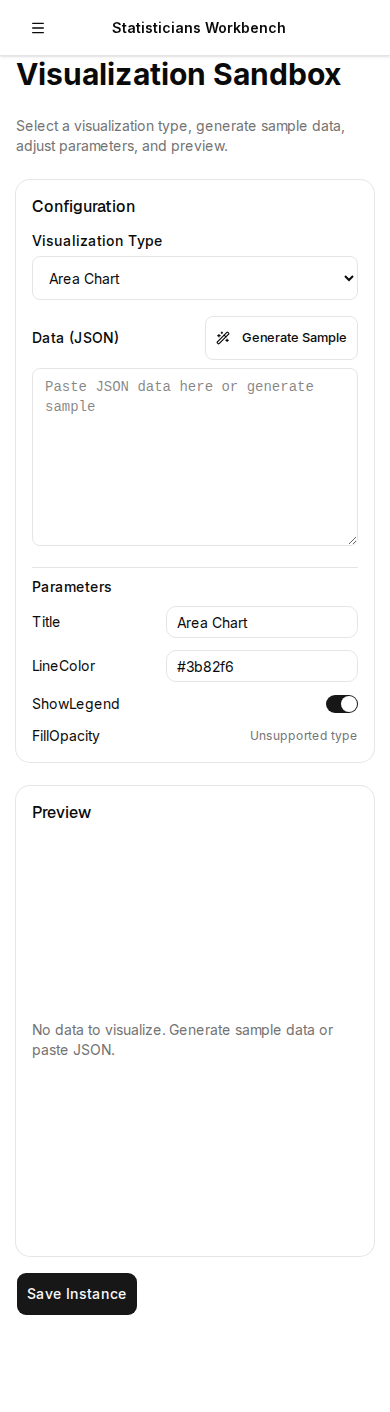
Statistical methods against any dataset — descriptive statistics, correlation, regression, hypothesis testing, distribution fitting. Results render as interactive Plotly charts (bar, line, scatter, histogram, box, pie) with export to PNG or CSV.
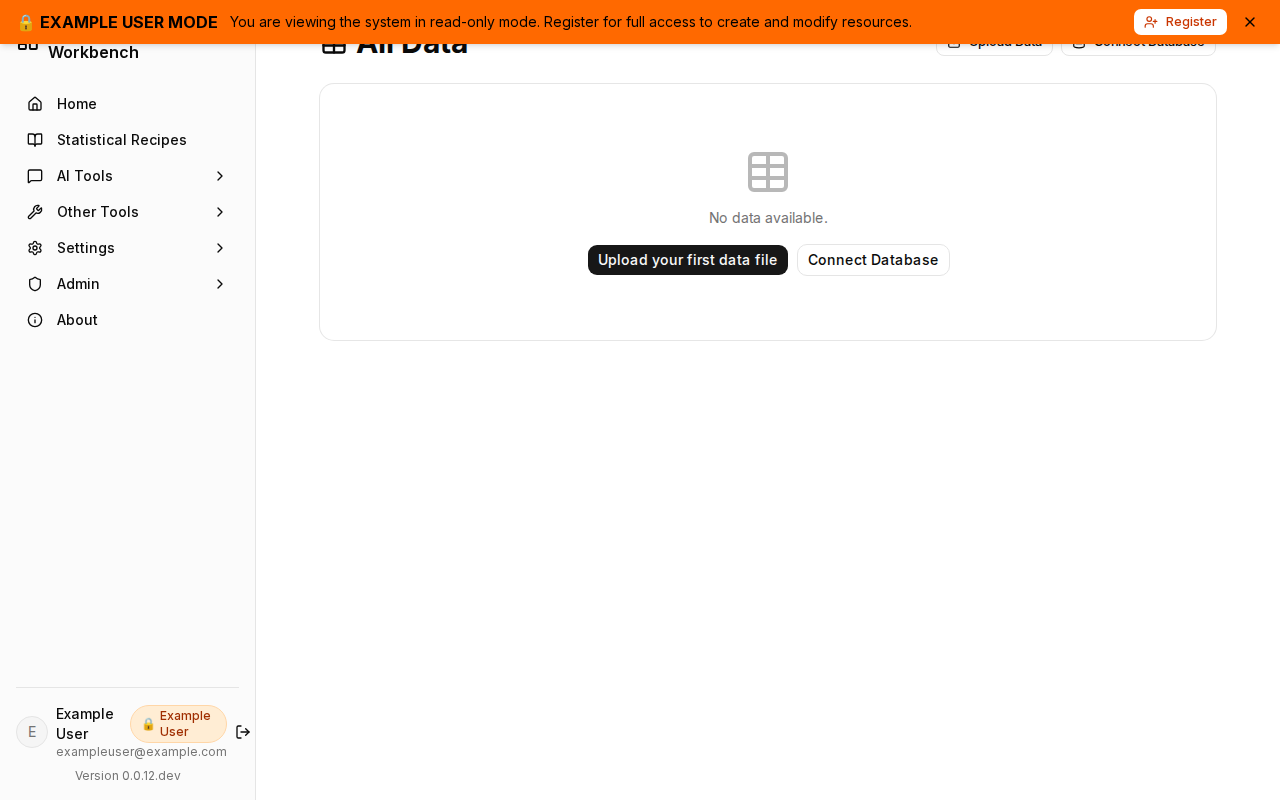
11. Other Tools — My Data / All Datasets
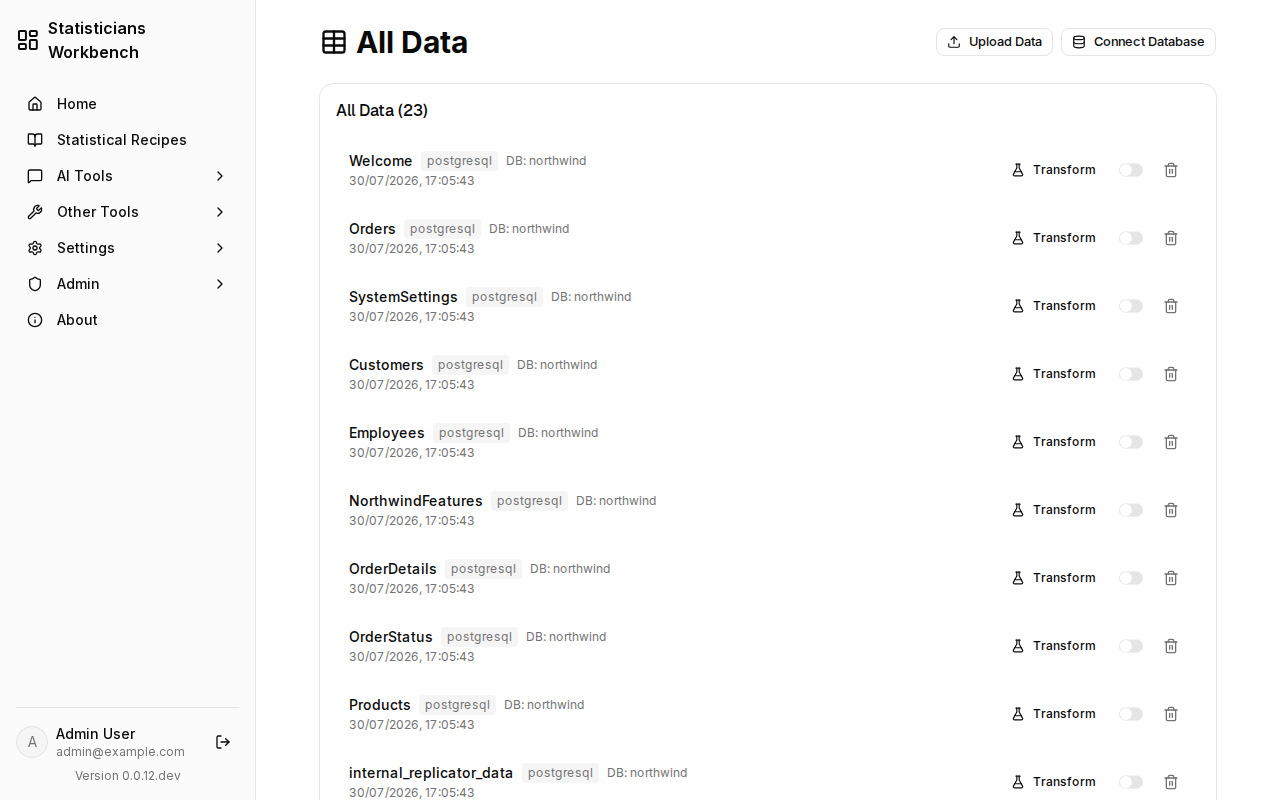
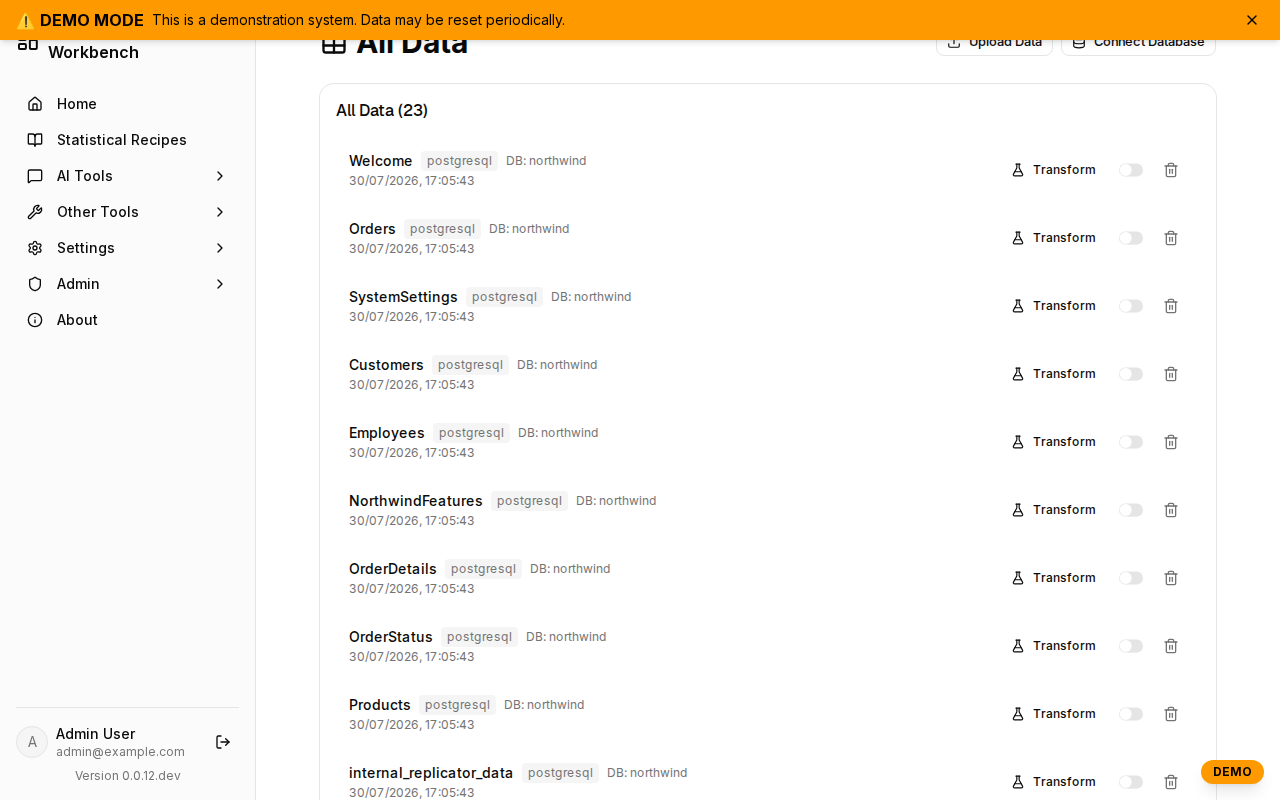
Browse and manage all datasets across all connections. View schema, preview rows, check status. Datasets feed into recipes, statistics, and AI analysis workflows.

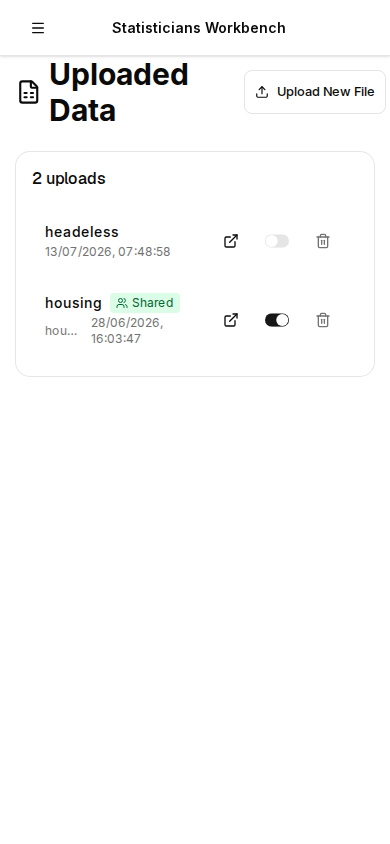
12. Other Tools — My Data / Uploads List
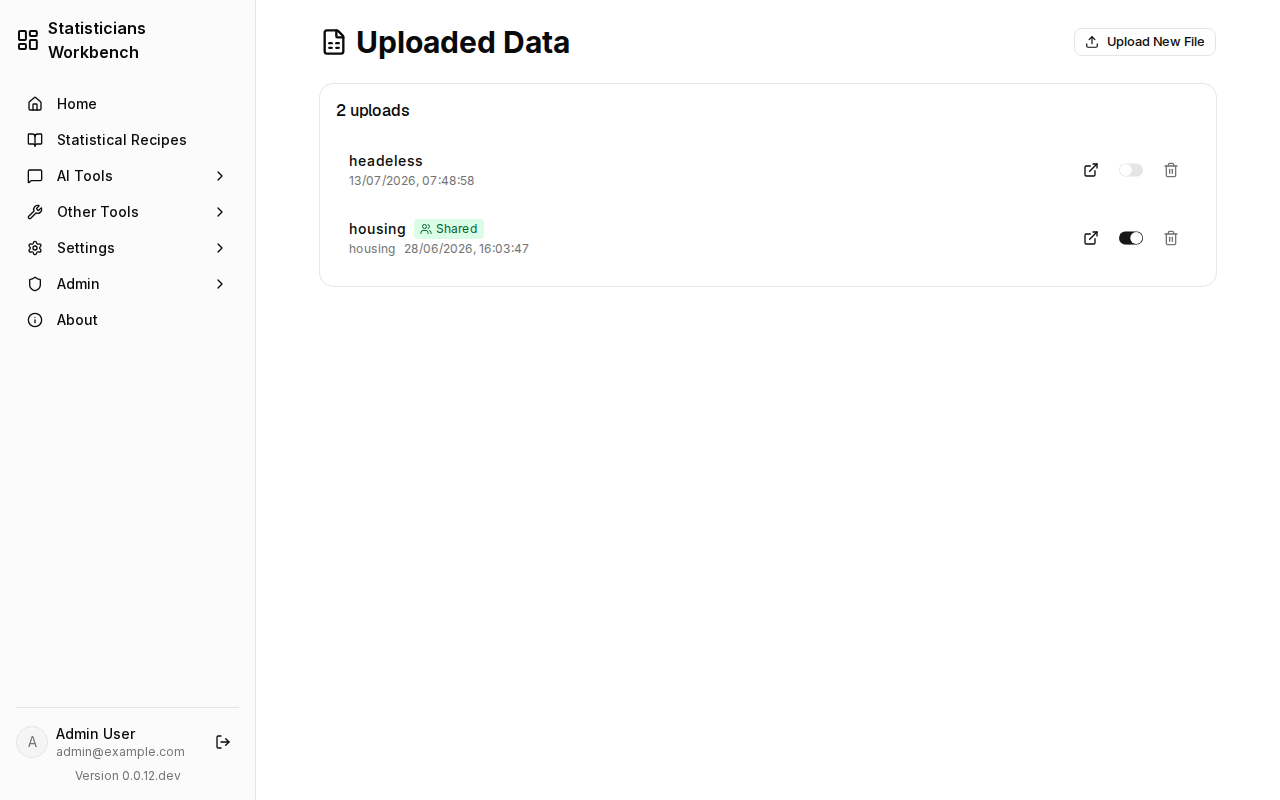
View all previously uploaded CSV and Excel files. Each upload is tracked with status, row count, and the dataset it produced. Re-ingest or delete uploads from this panel.
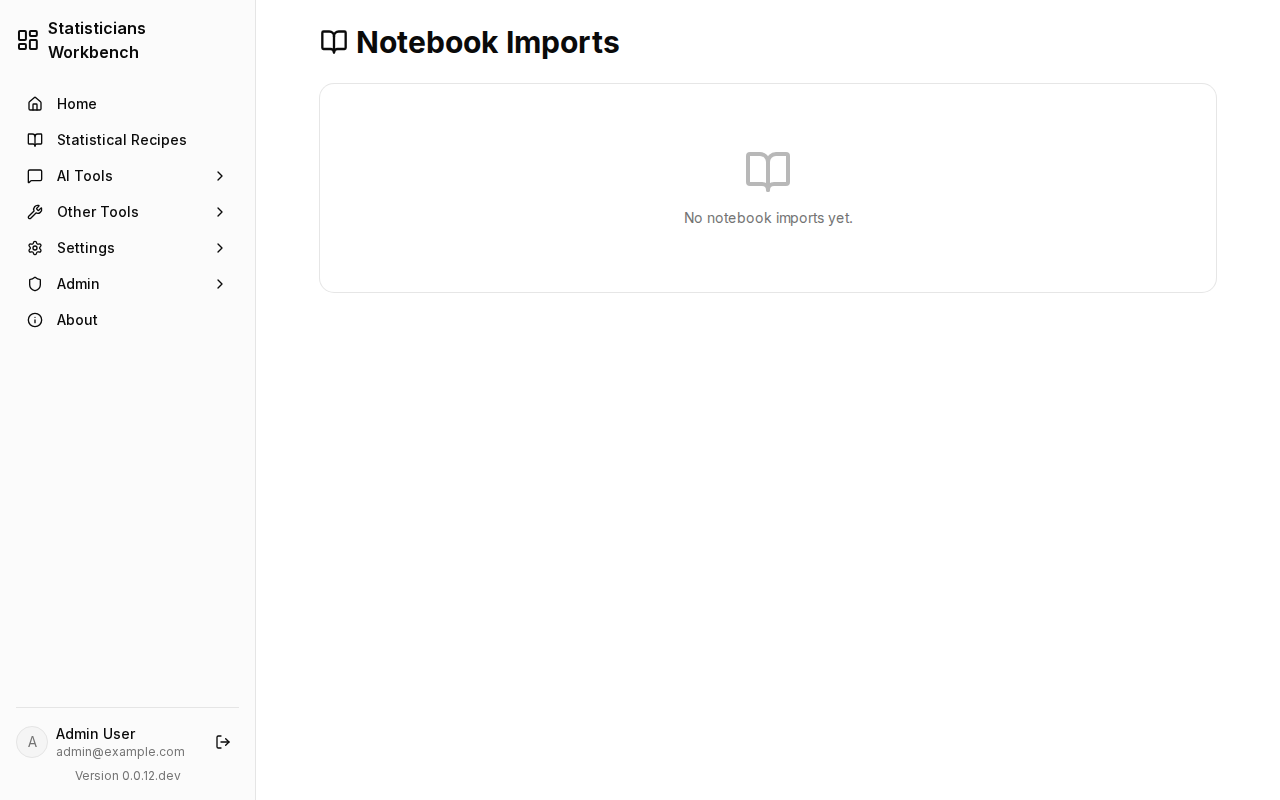
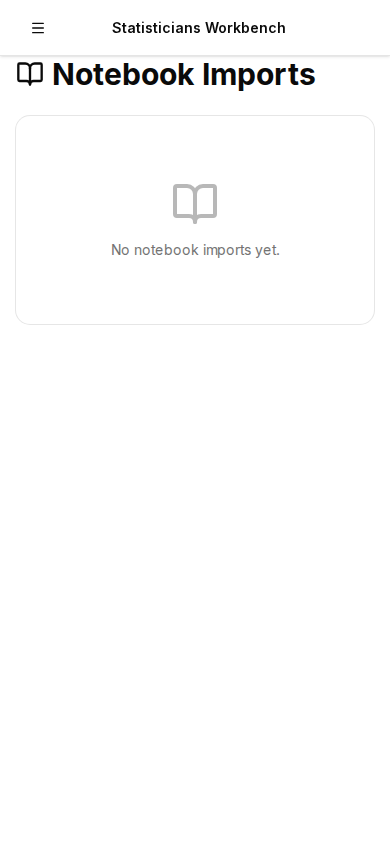
13. Other Tools — My Data / Notebooks
Browse imported Jupyter notebooks. Notebooks are stored, linked to datasets, and displayed alongside recipe execution history. Import-only — no Jupyter server required.
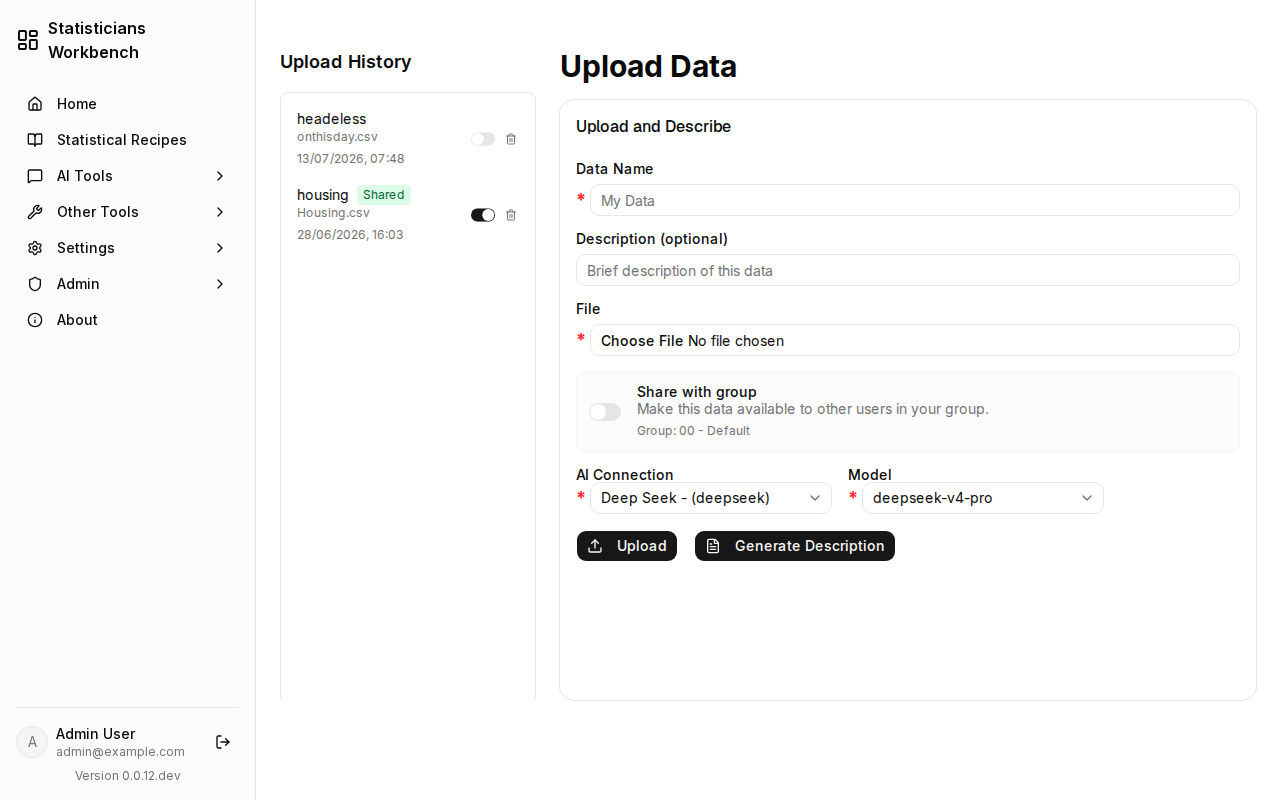
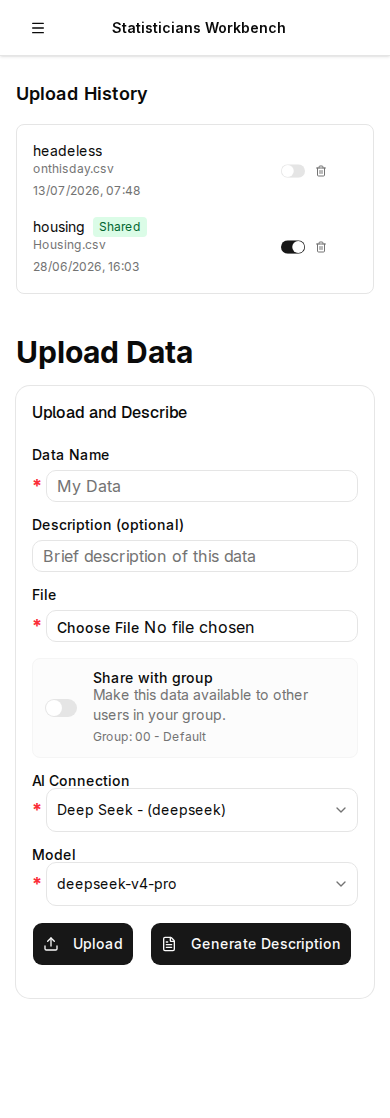
14. Other Tools — Collect Data / Upload CSV/Excel
Upload CSV, Excel, or JSON files. Ingested data appears in All Datasets and is immediately available for recipes, statistics, and AI analysis. Upload limits are configured per user group in admin settings.
15. Other Tools — Collect Data / Connect Database
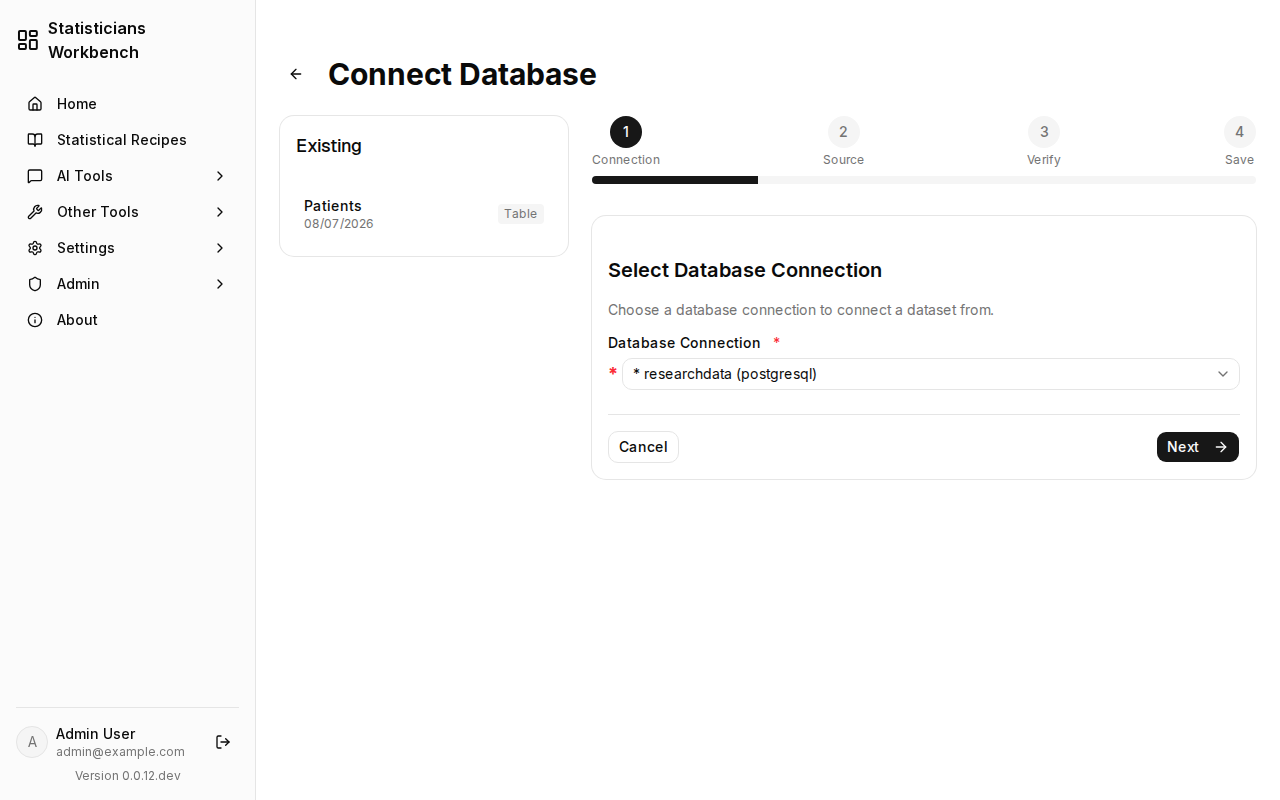
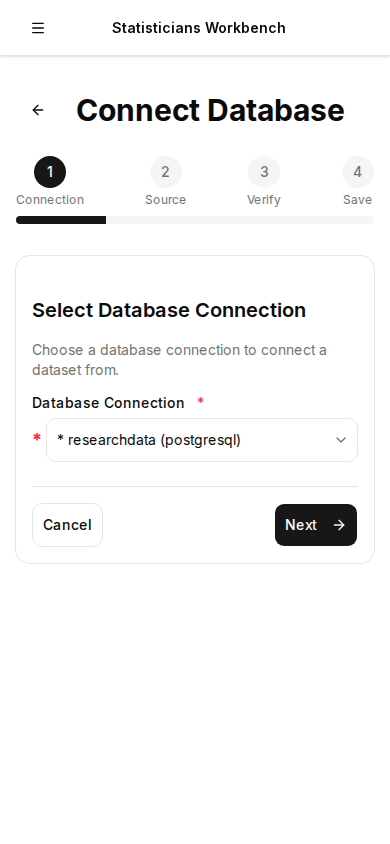
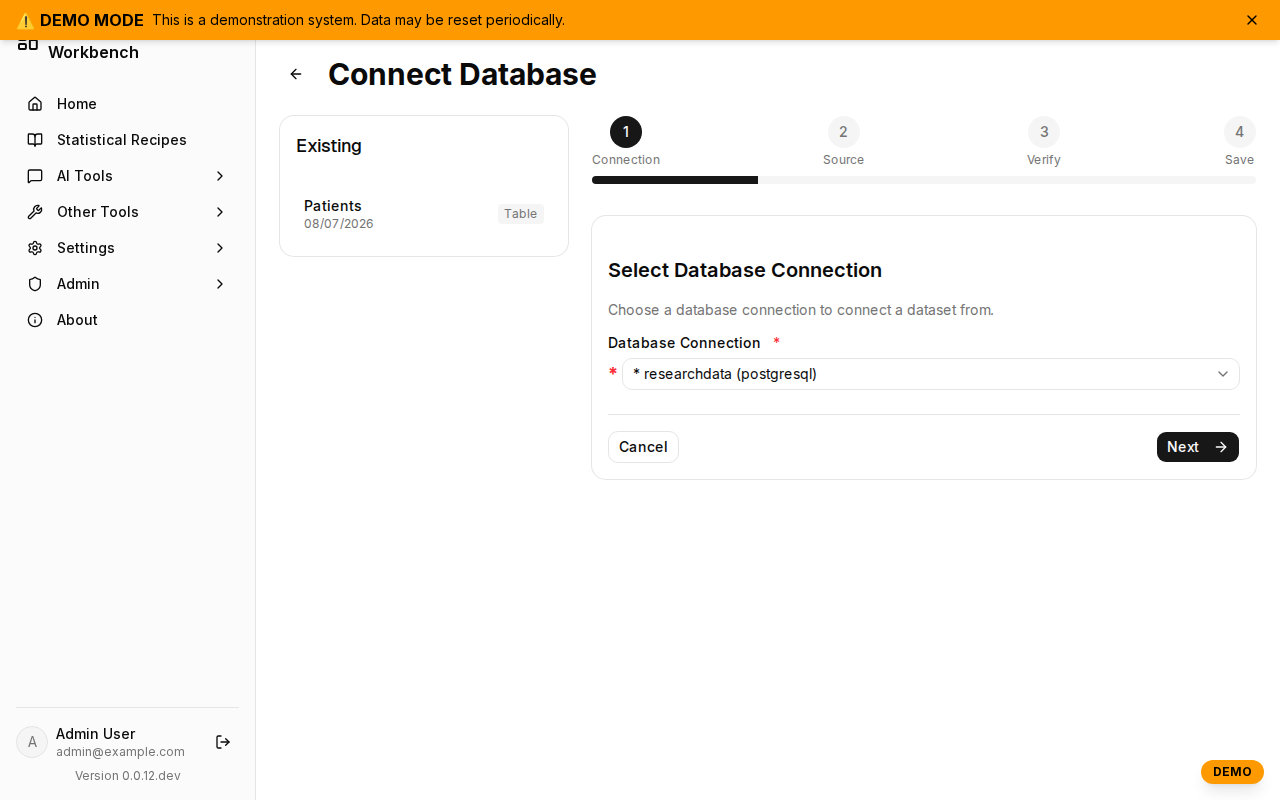
Add, test, and manage connections to PostgreSQL, MySQL, SQL Server, and MS Access databases. Credentials encrypted at rest. Saved connections feed schema browsers and table previews throughout the platform.
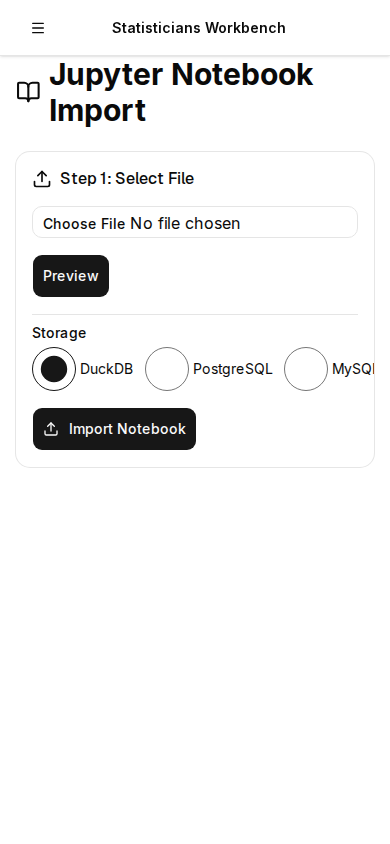
16. Other Tools — Collect Data / Import Notebook
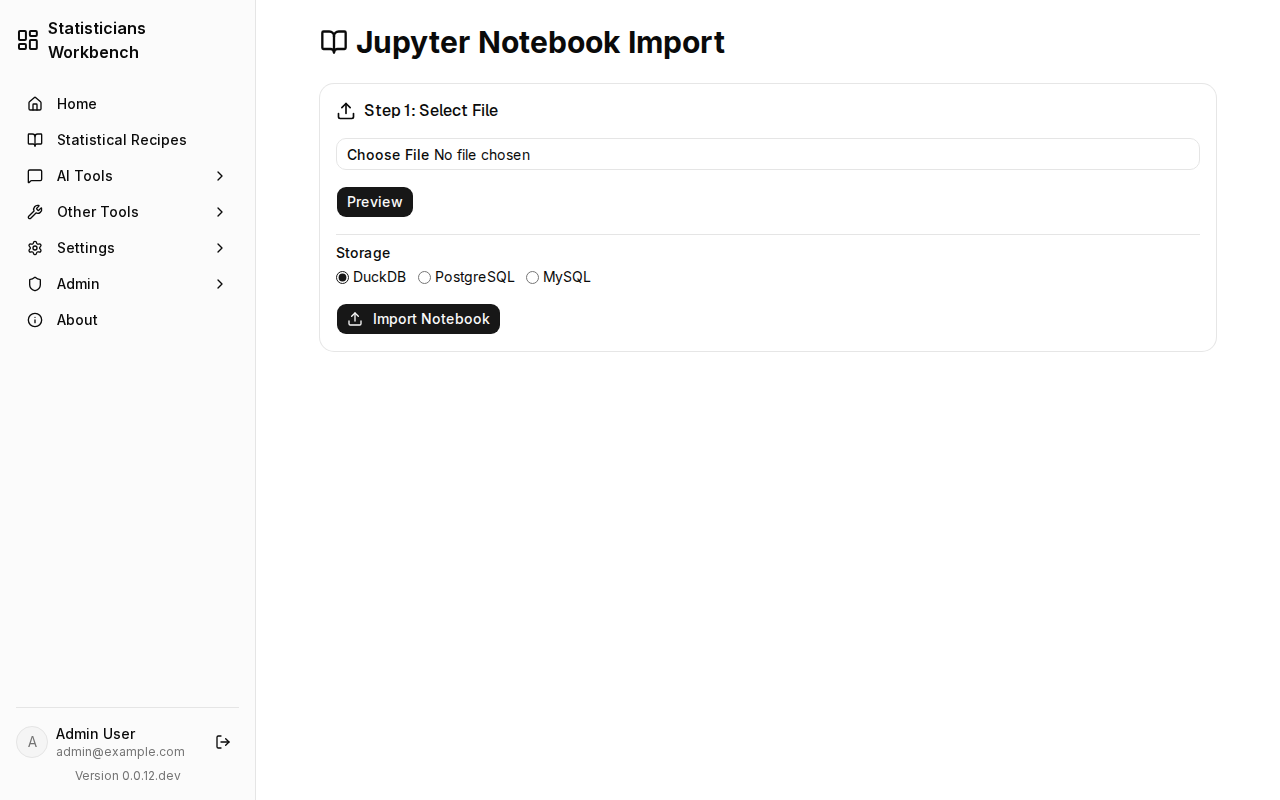
Import Jupyter notebooks (.ipynb files). Uploaded notebooks are stored, linked to datasets, and displayed alongside recipe execution history. Import-only — no Jupyter server required.
⚙️ Settings
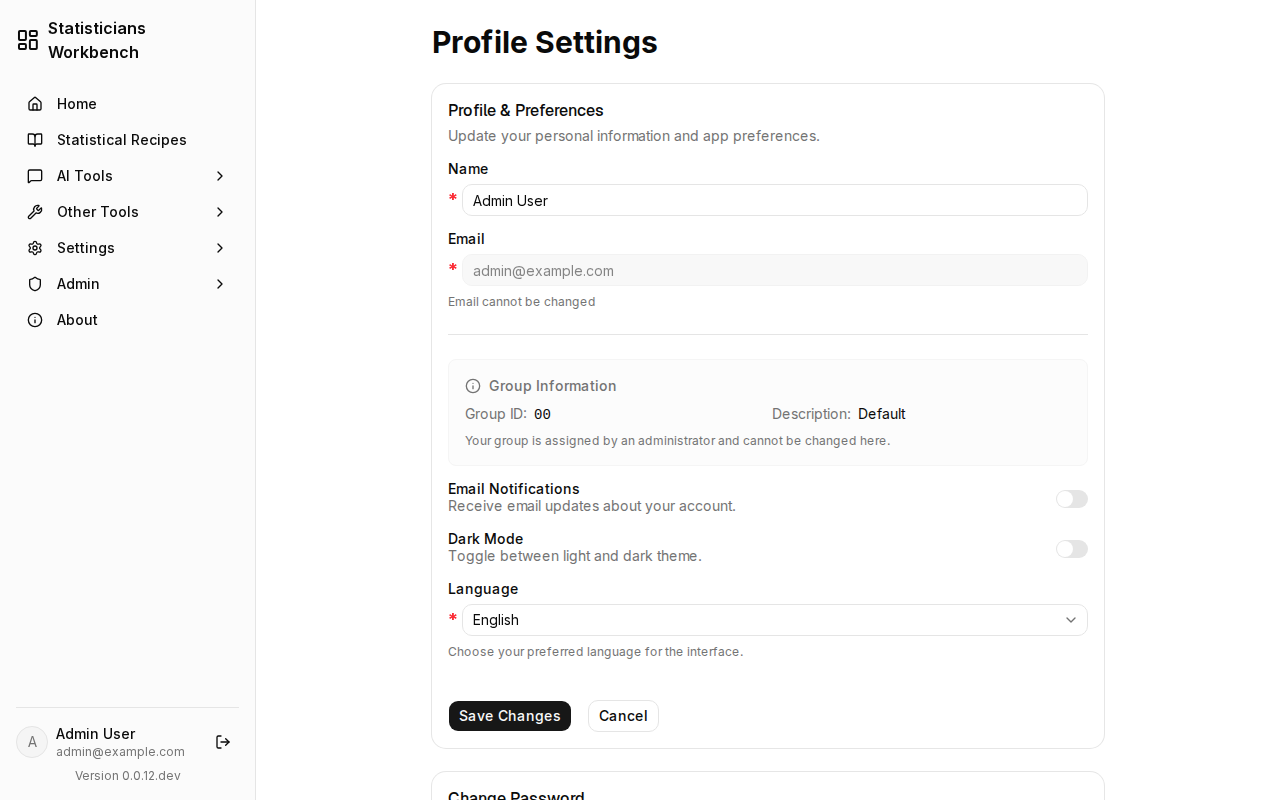
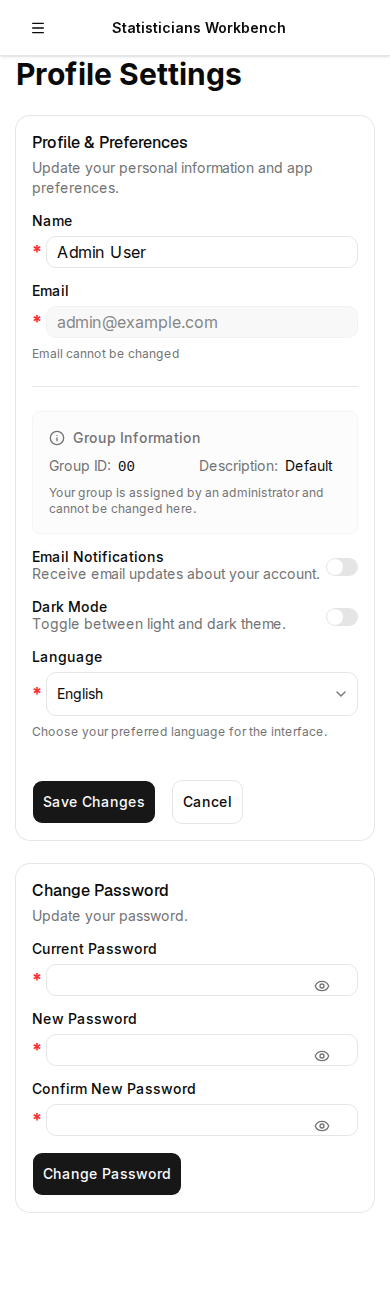
17. Settings — Profile & Preferences
Update display name, email notification settings, language preference, and dark mode toggle. Language changes persist across sessions — the backend reads the language column on every authenticated request. Password change with strength validation.
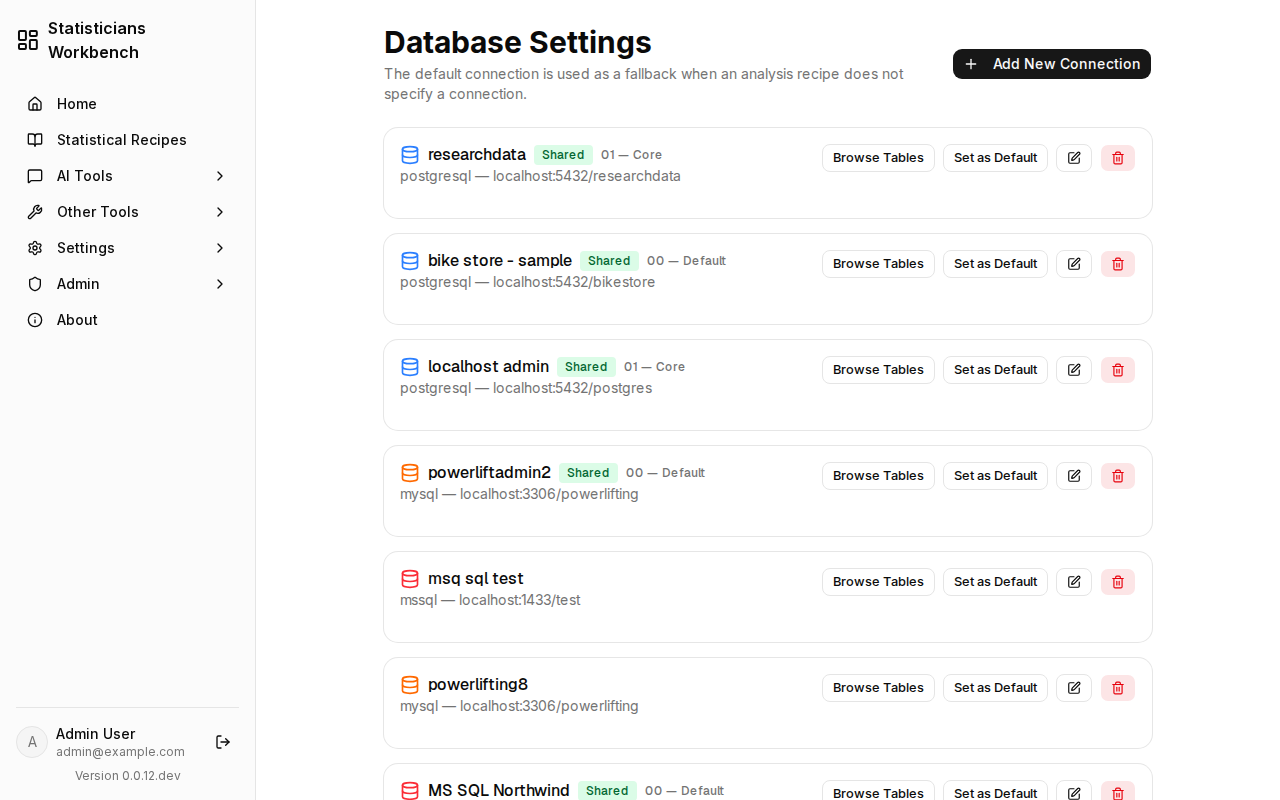
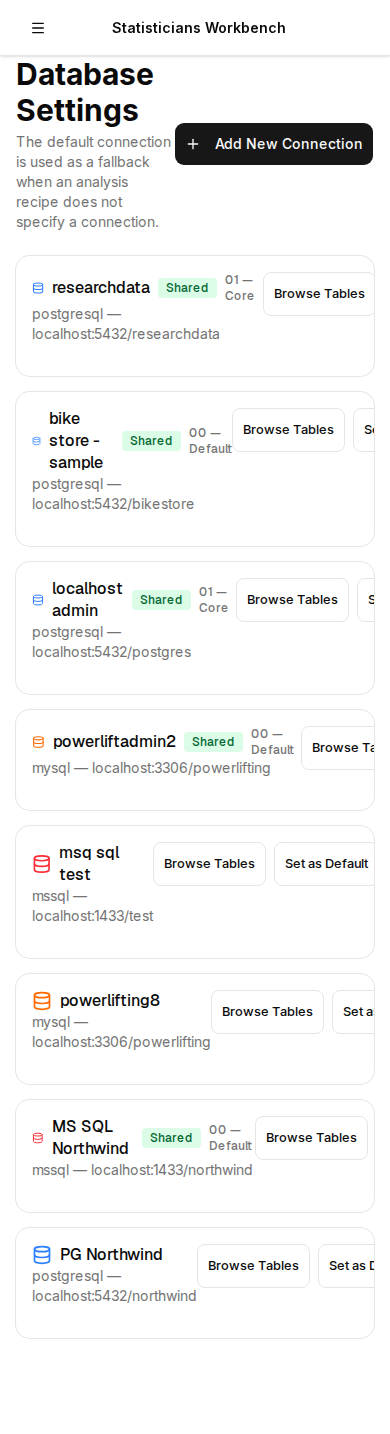
18. Settings — Database
Manage saved database connections from the settings panel. View, edit, and test connections. Configure default connection and connection pooling options.
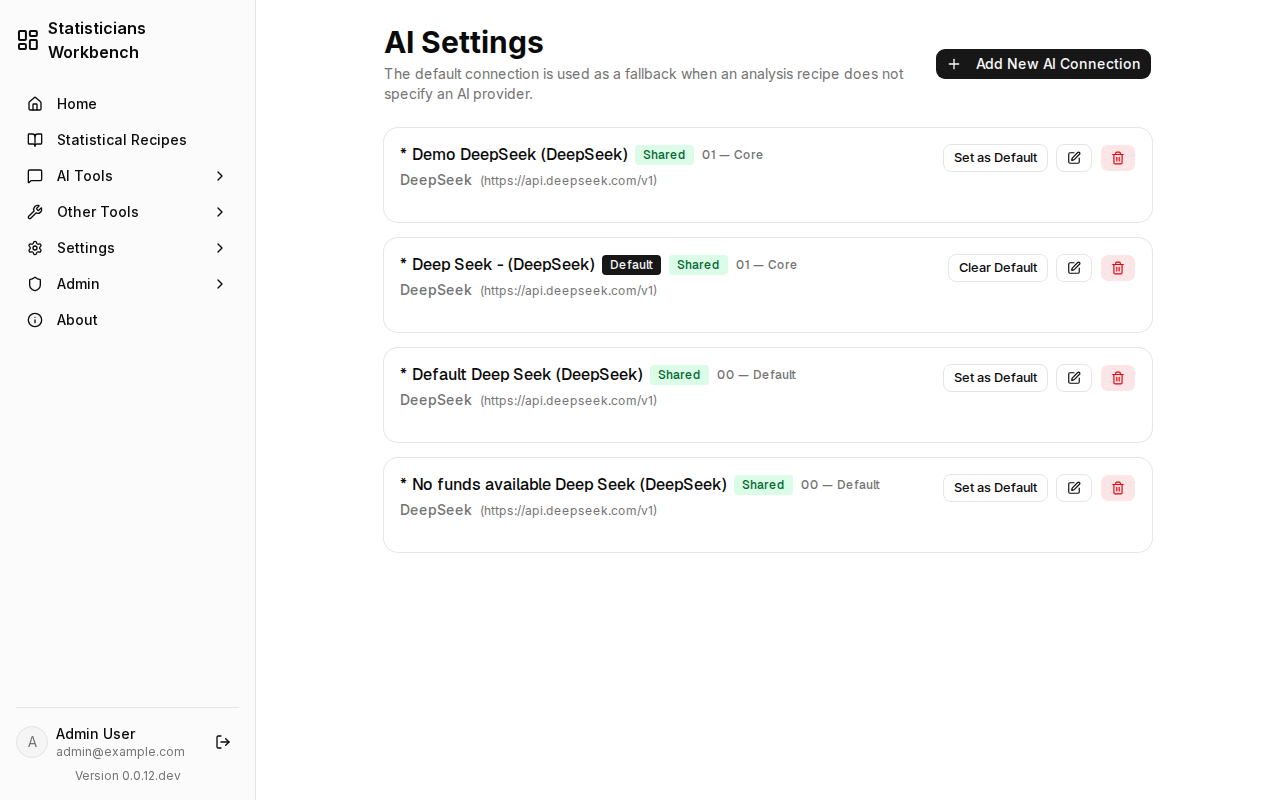
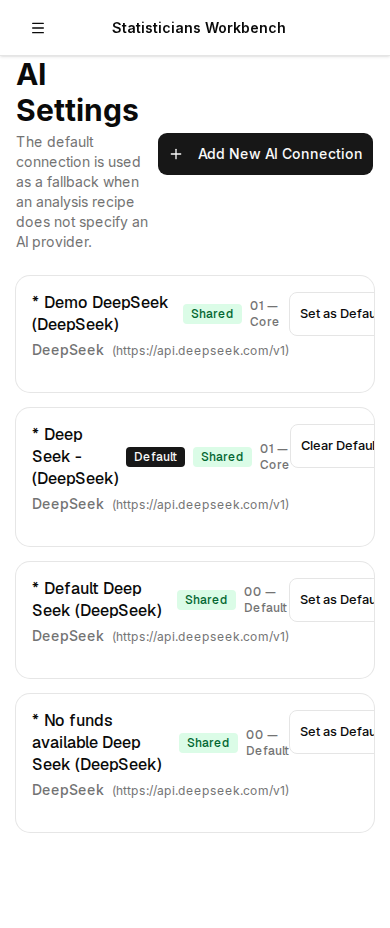
19. Settings — AI
Manage AI provider connections — Anthropic, OpenAI, and OpenAI-compatible endpoints. Each connection stores an API key (encrypted), endpoint URL, and model configuration. Set a default AI connection for the chat panel and concierge.
🛡️ Admin
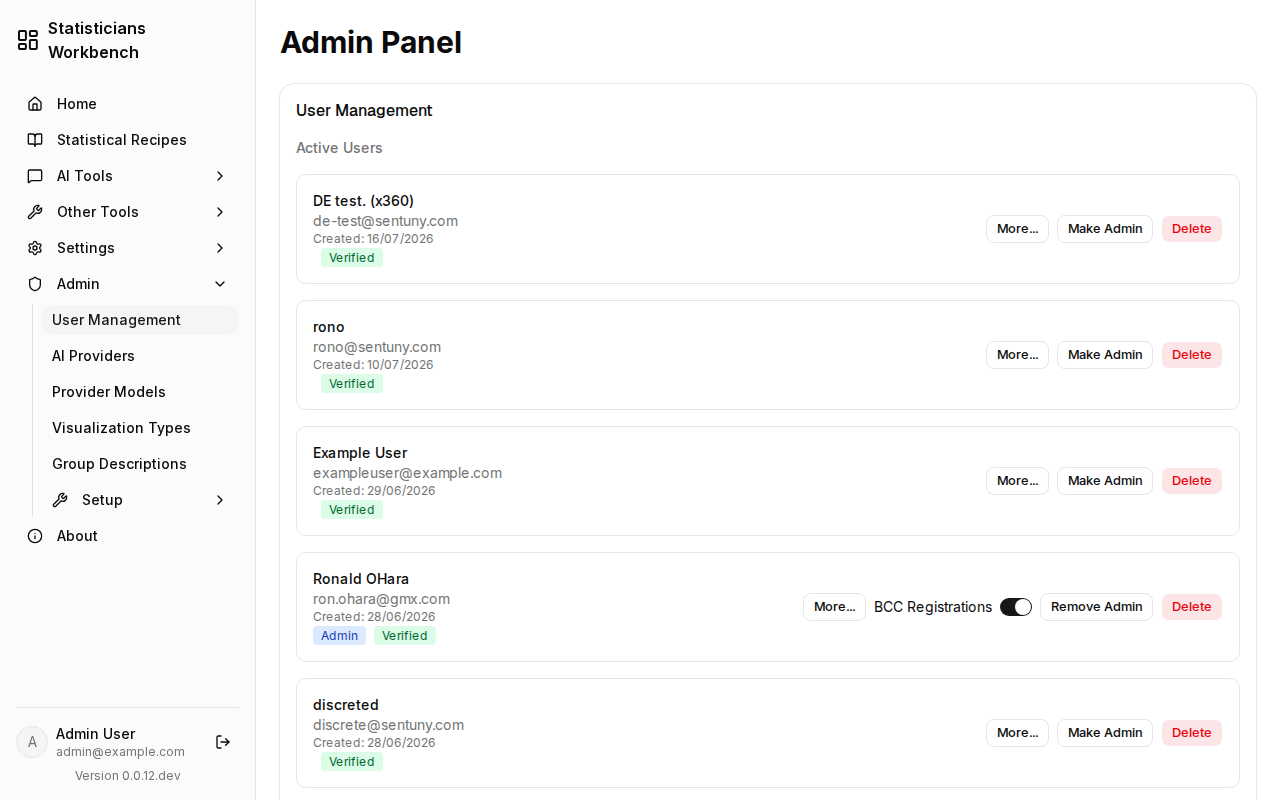
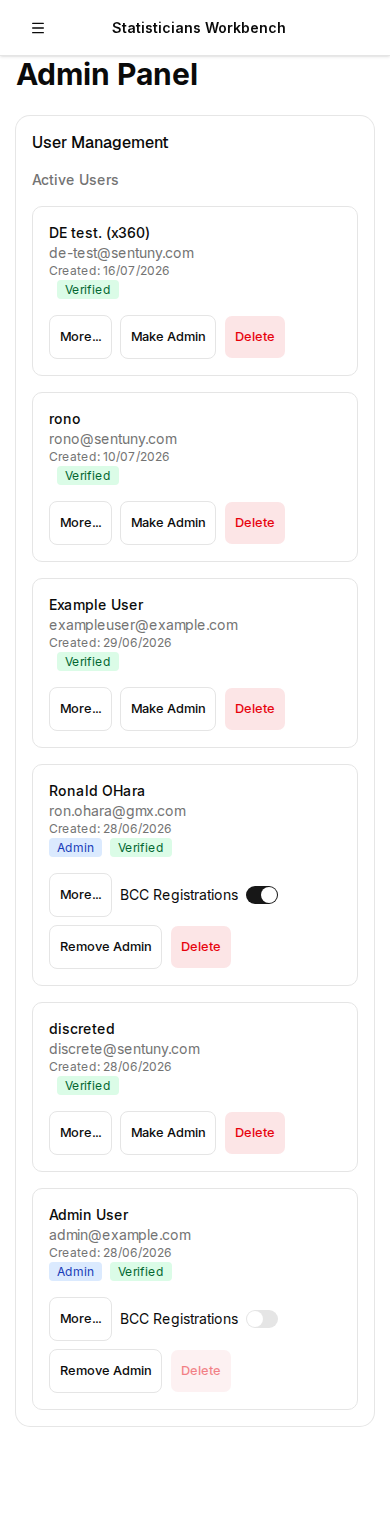
20. Admin — Admin Panel
Platform-level controls across four setup tabs: user management (list, promote, delete), group administration (create groups, assign members), feature gate toggles, and platform options.
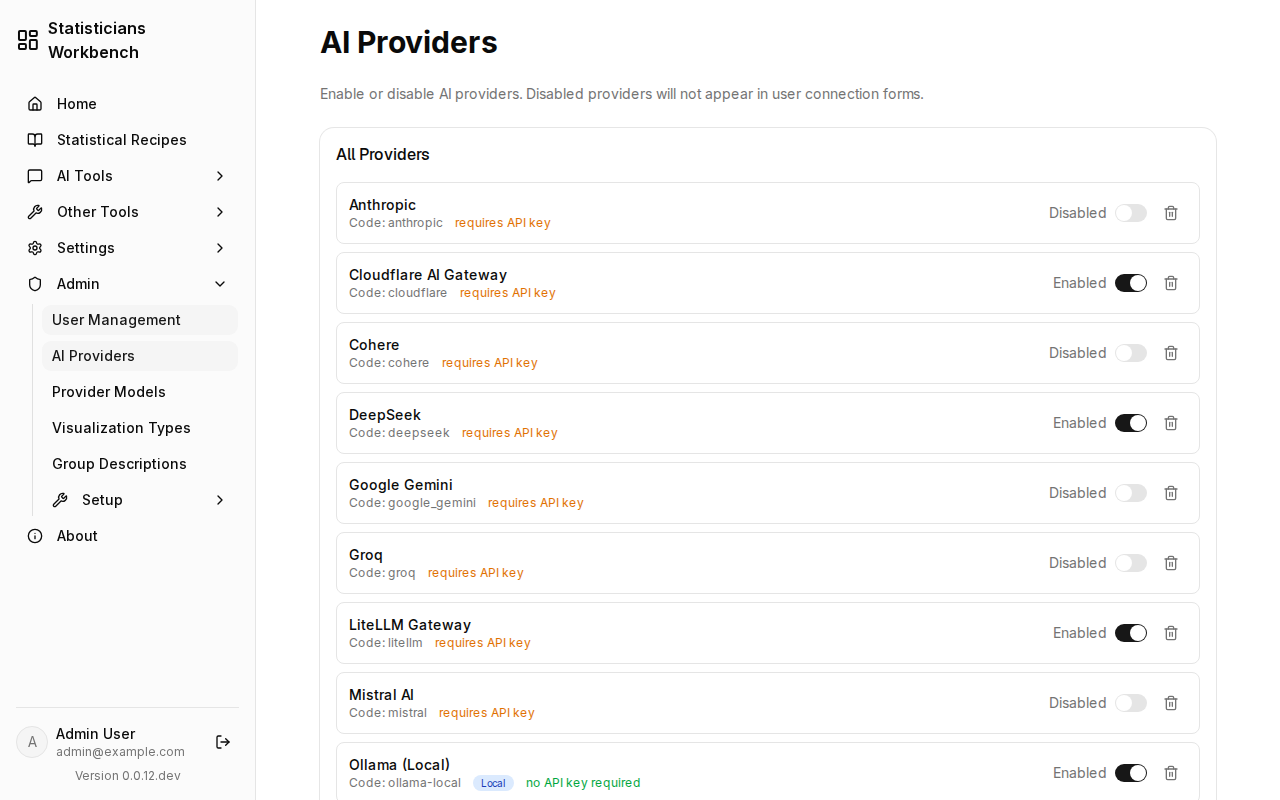
21. Admin — AI Providers
Global AI provider management. Add, edit, and remove provider connections available to all users. Configure rate limits, model allowlists, and usage tracking.

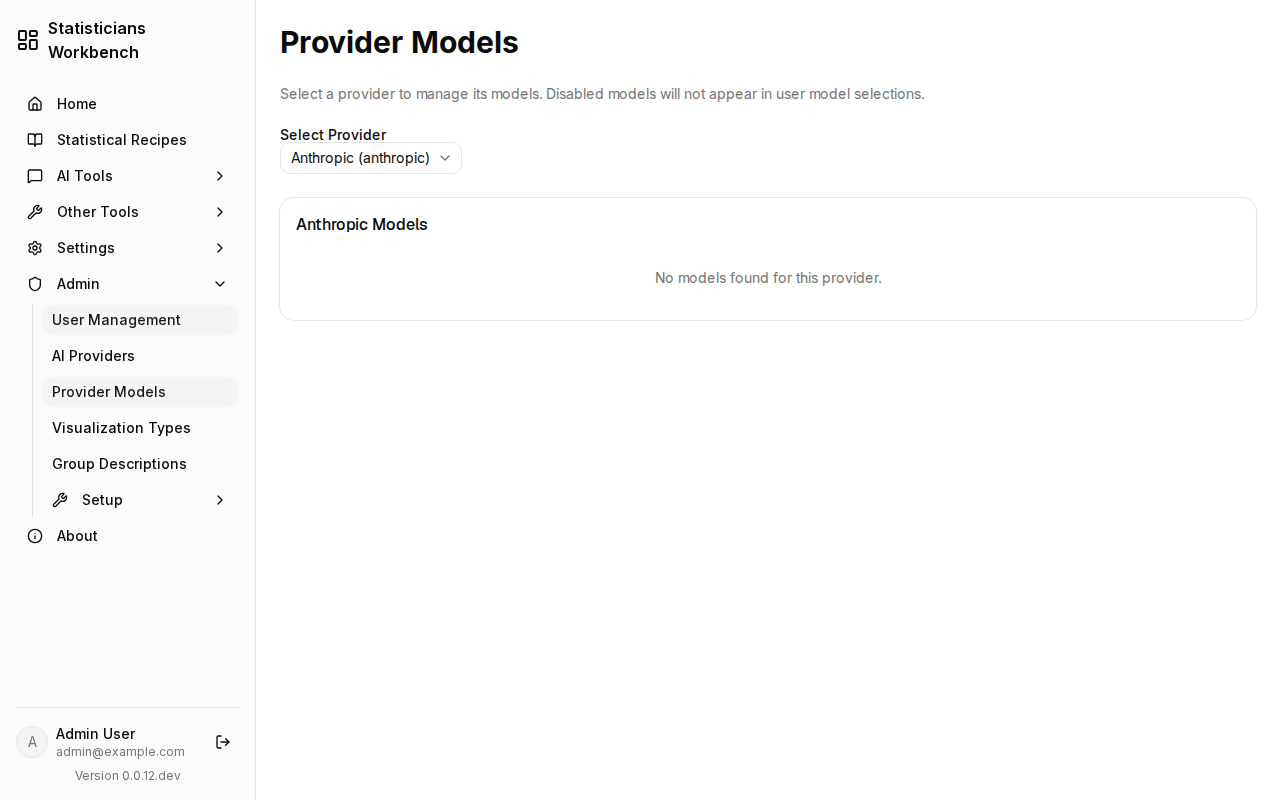
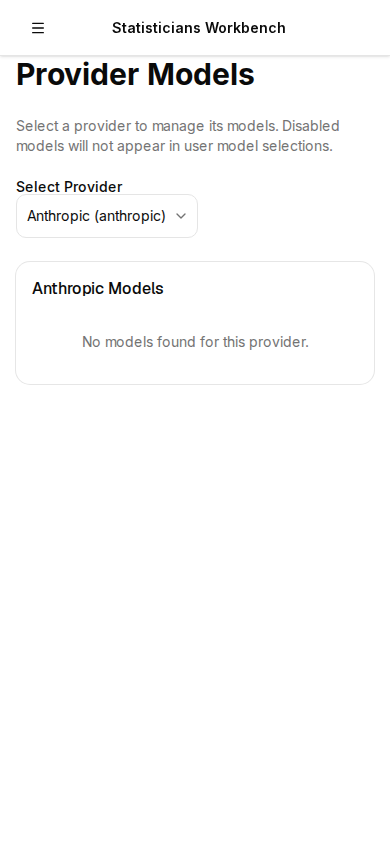
22. Admin — AI Models
Manage the catalogue of available AI models. Enable or disable specific models per provider. Set default models for different task types (chat, analysis, code generation).
23. Admin — Visualization Types
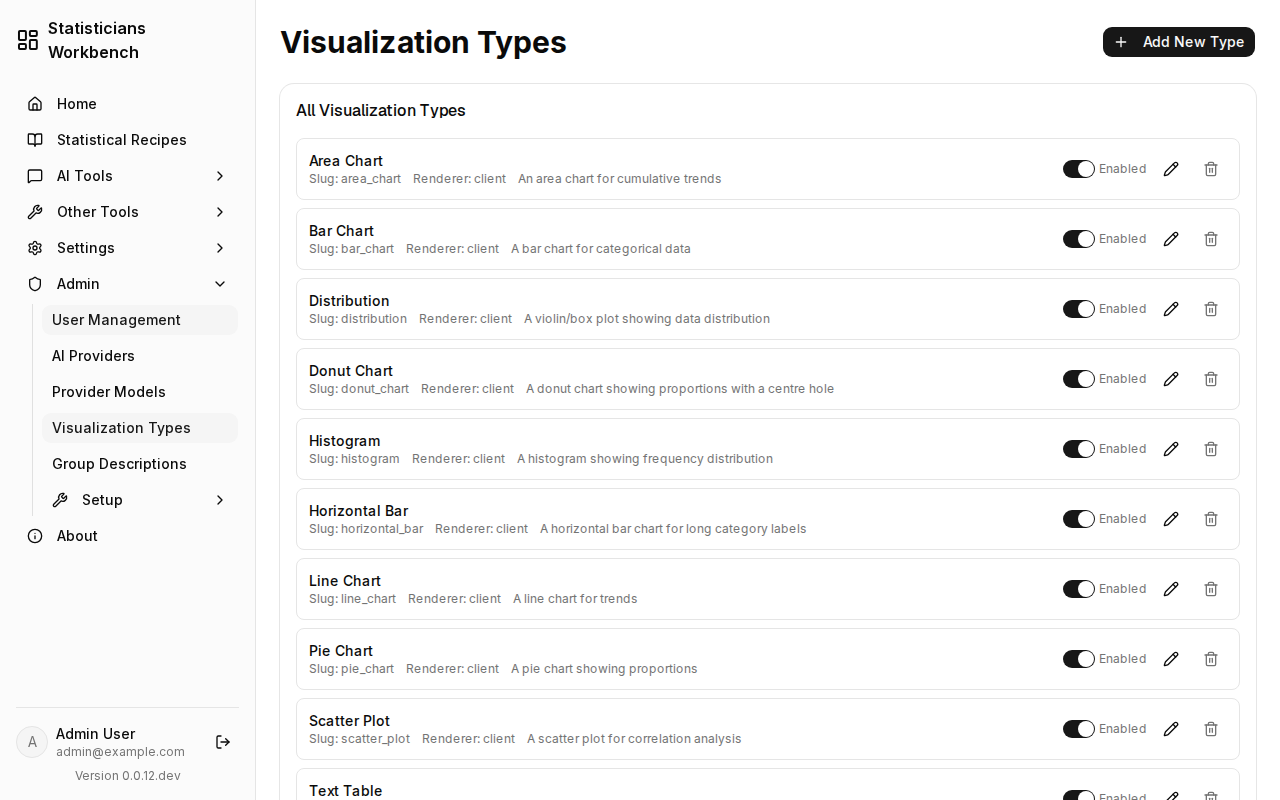
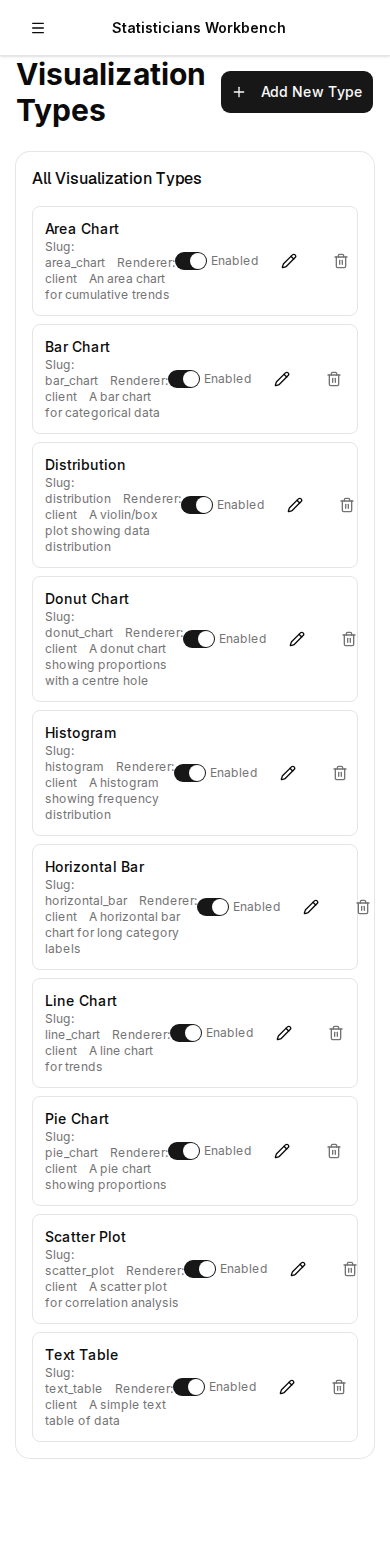
Configure which chart and visualization types are available to users. Enable/disable specific Plotly chart types. Set default colour palettes and rendering options.
24. Admin — Groups
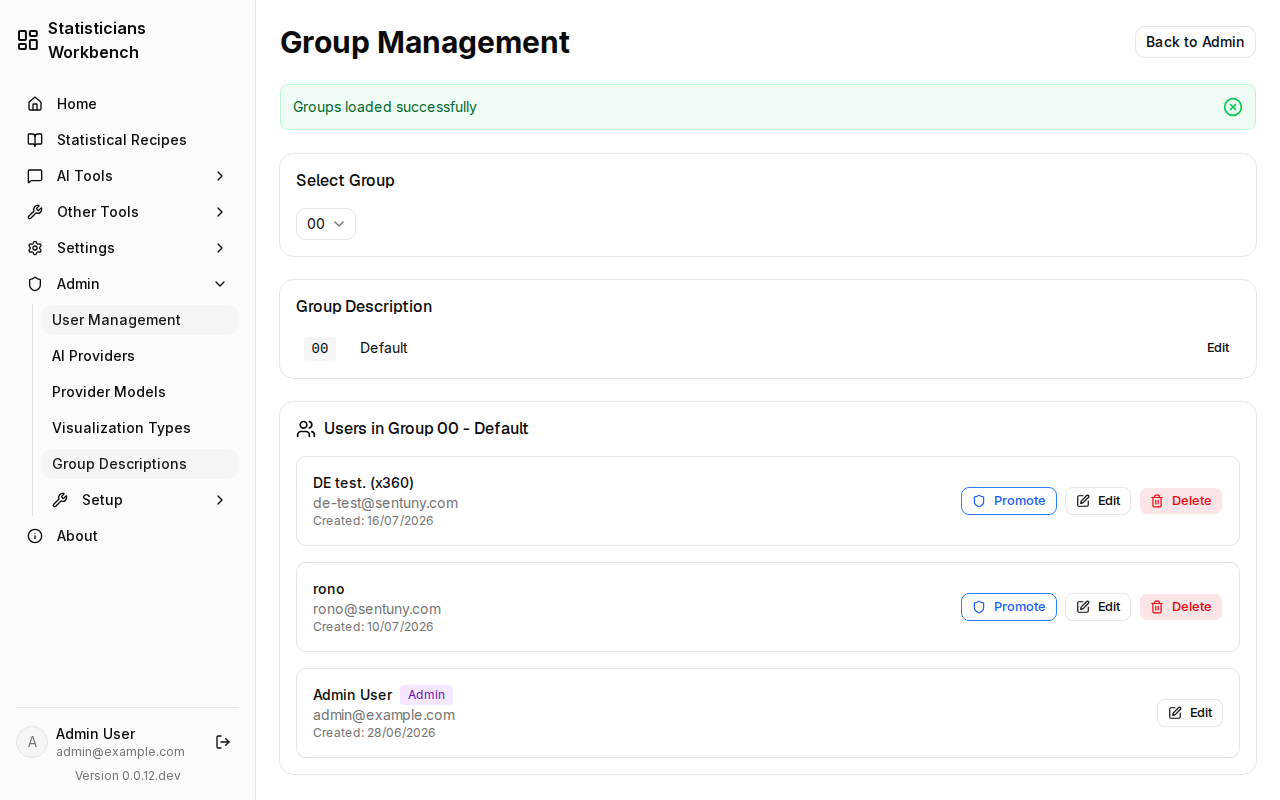
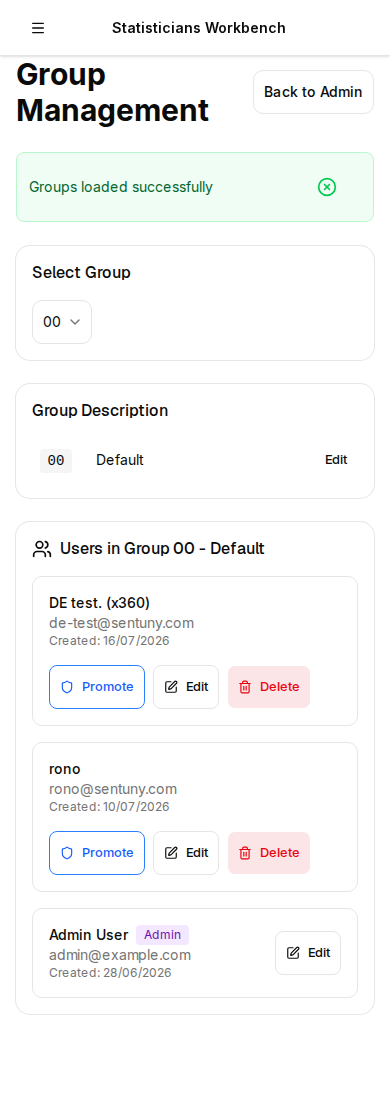
Create and manage user groups. Assign members, set group-level permissions, configure upload limits per group. Groups control access to shared recipes, datasets, and database connections.
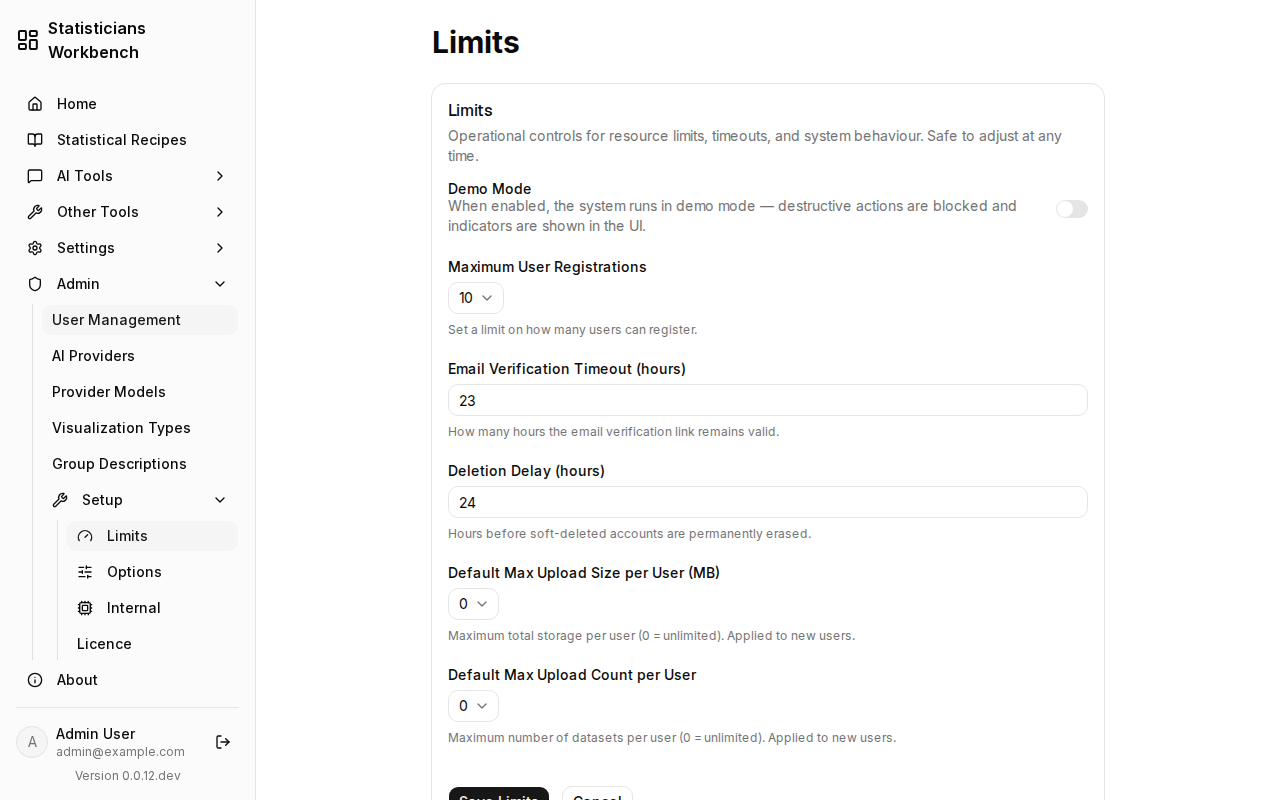
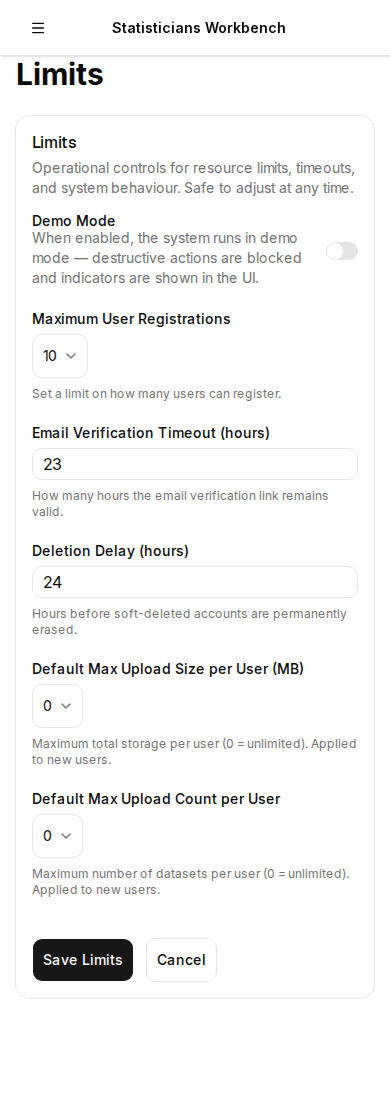
25. Admin — Setup / Limits
Configure platform-wide resource limits — maximum upload size, maximum dataset count per user, session timeout duration, and concurrent connection caps. These limits apply to all users unless overridden at the group level.
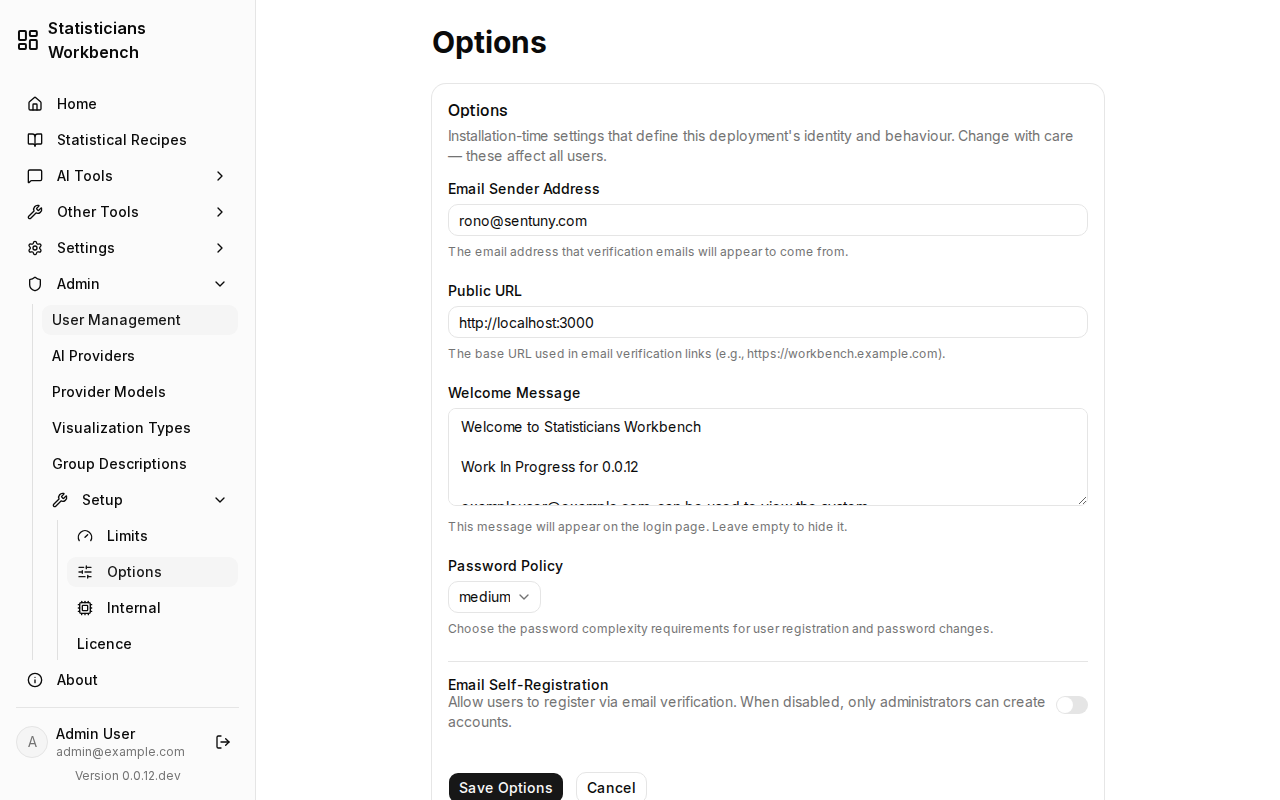
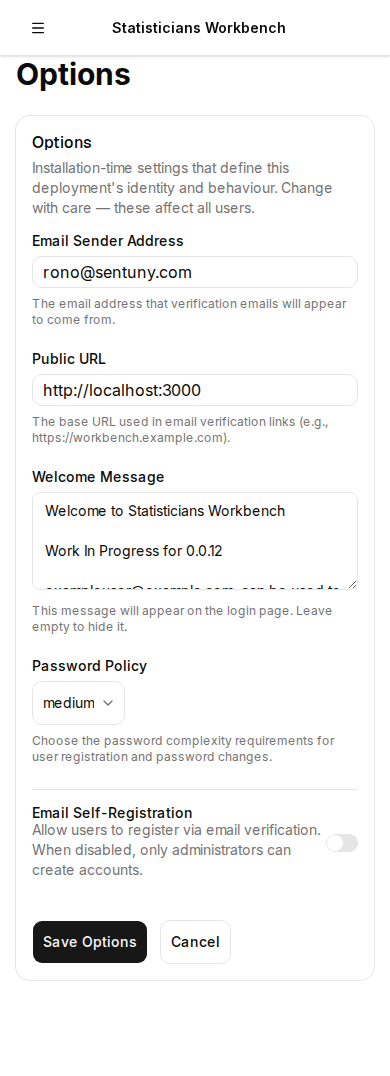
26. Admin — Setup / Options
Platform-level feature toggles and behavioural options — enable or disable MSSQL support, MS Access support, audit logging, and other licensed features. Configure default language, timezone, and date format for new users.
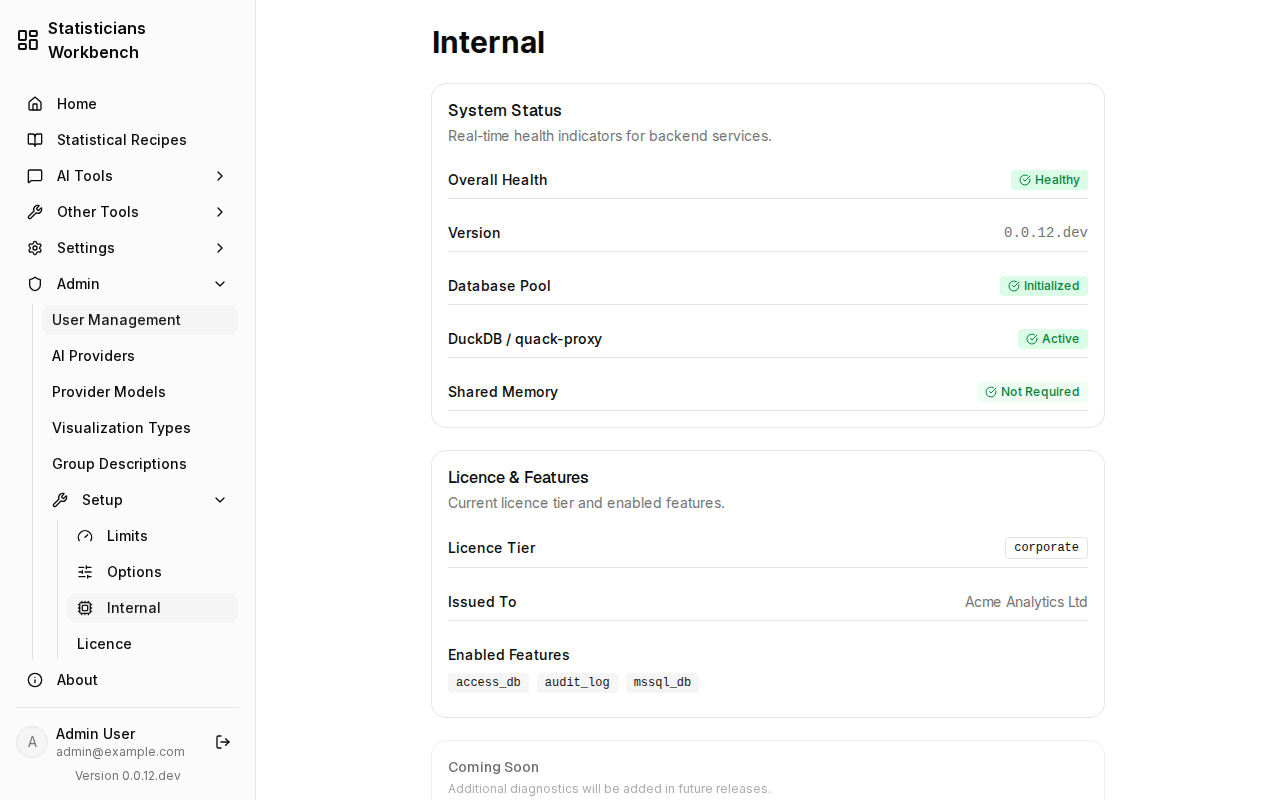
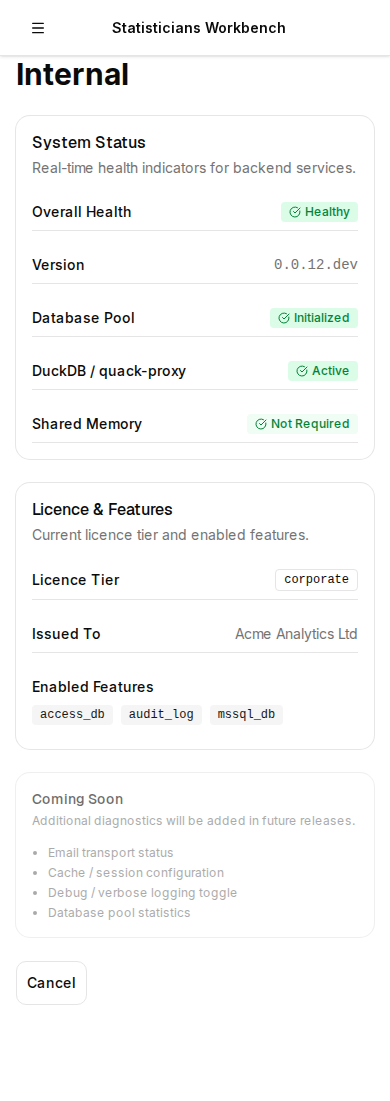
27. Admin — Setup / Internal
Internal system configuration — database connection pool settings, cache TTL values, background job intervals, and log verbosity. These settings typically require a backend restart to take effect.
28. Admin — Setup / Licence
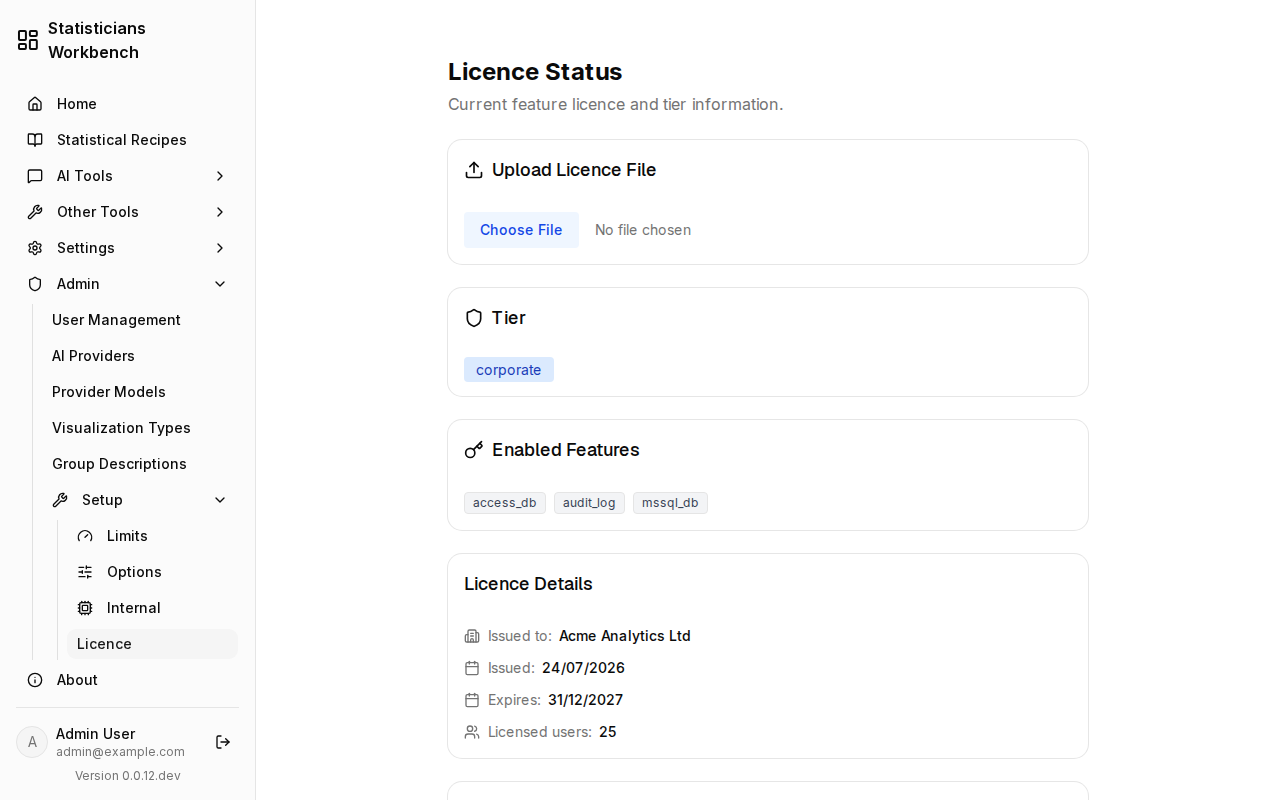
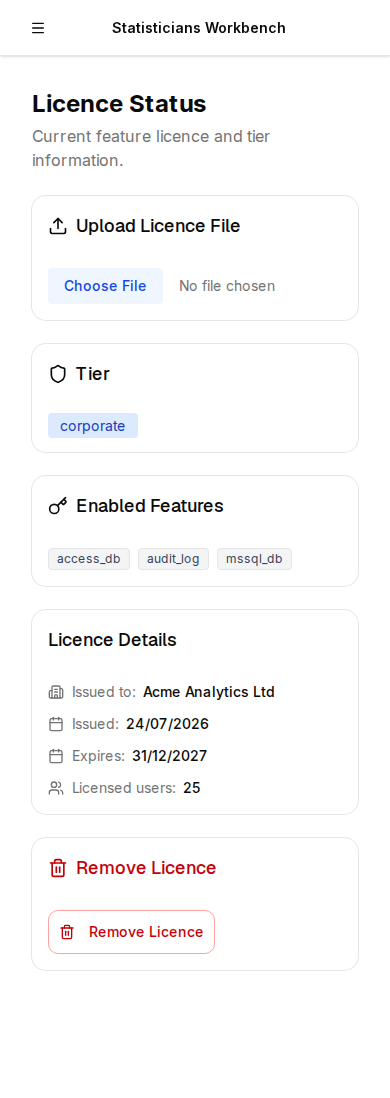
View and manage the platform licence — current tier, feature entitlements, expiry date, and seat count. Enter or update the licence key. The licence controls which features are available across the entire instance.
🖥️ Platform
29. Demo Mode
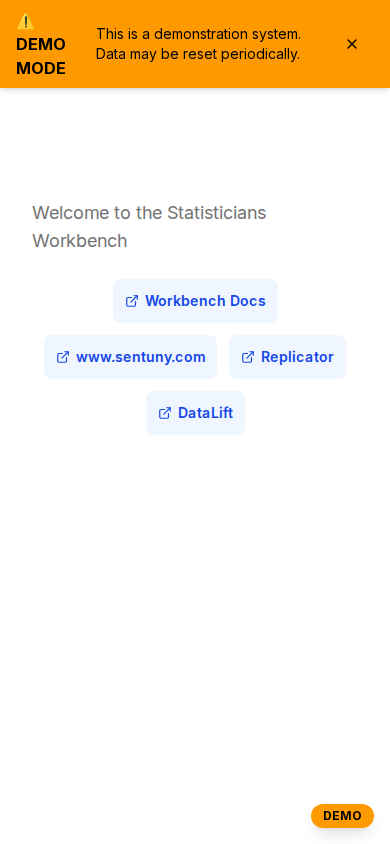
When enabled, a banner appears on every page indicating the platform is in evaluation mode. Local AI resources are blocked — only cloud AI providers function. Admin-configured sample datasets are visible. Authentication still required.
30. Example User
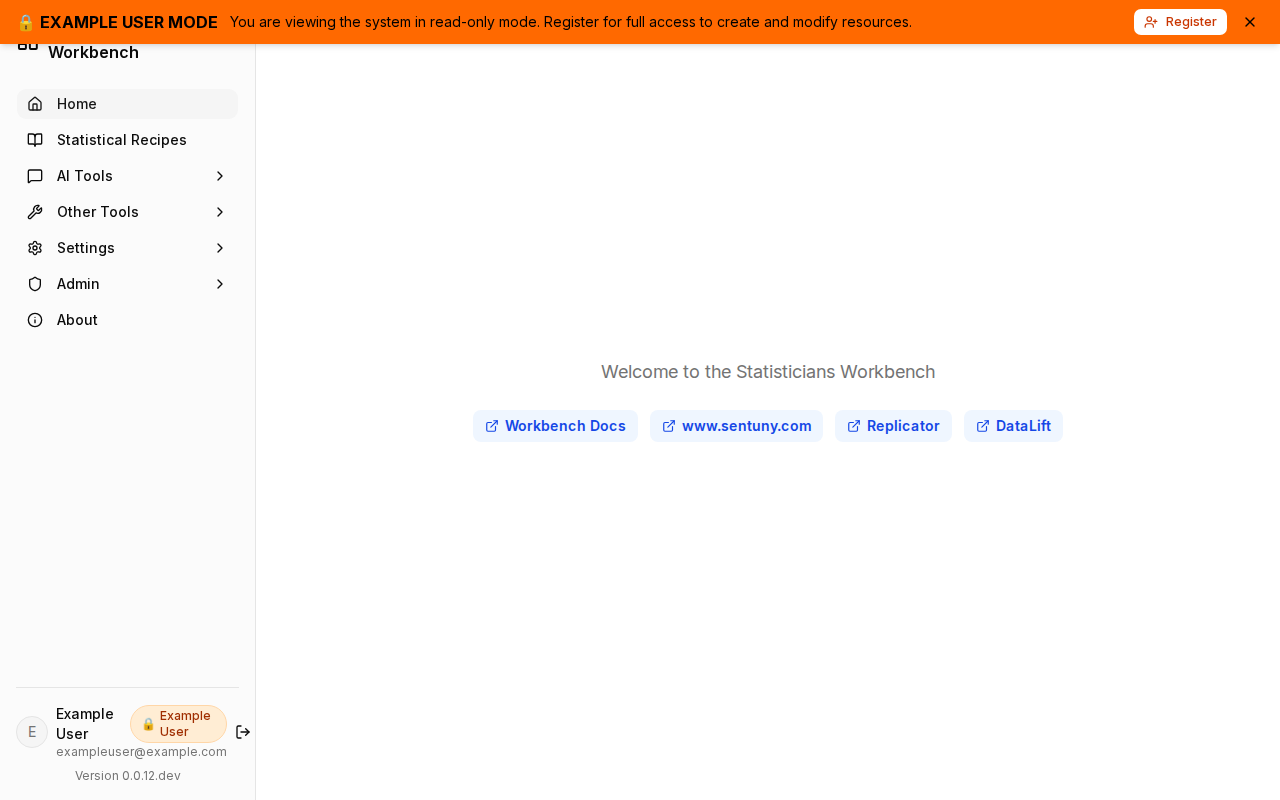
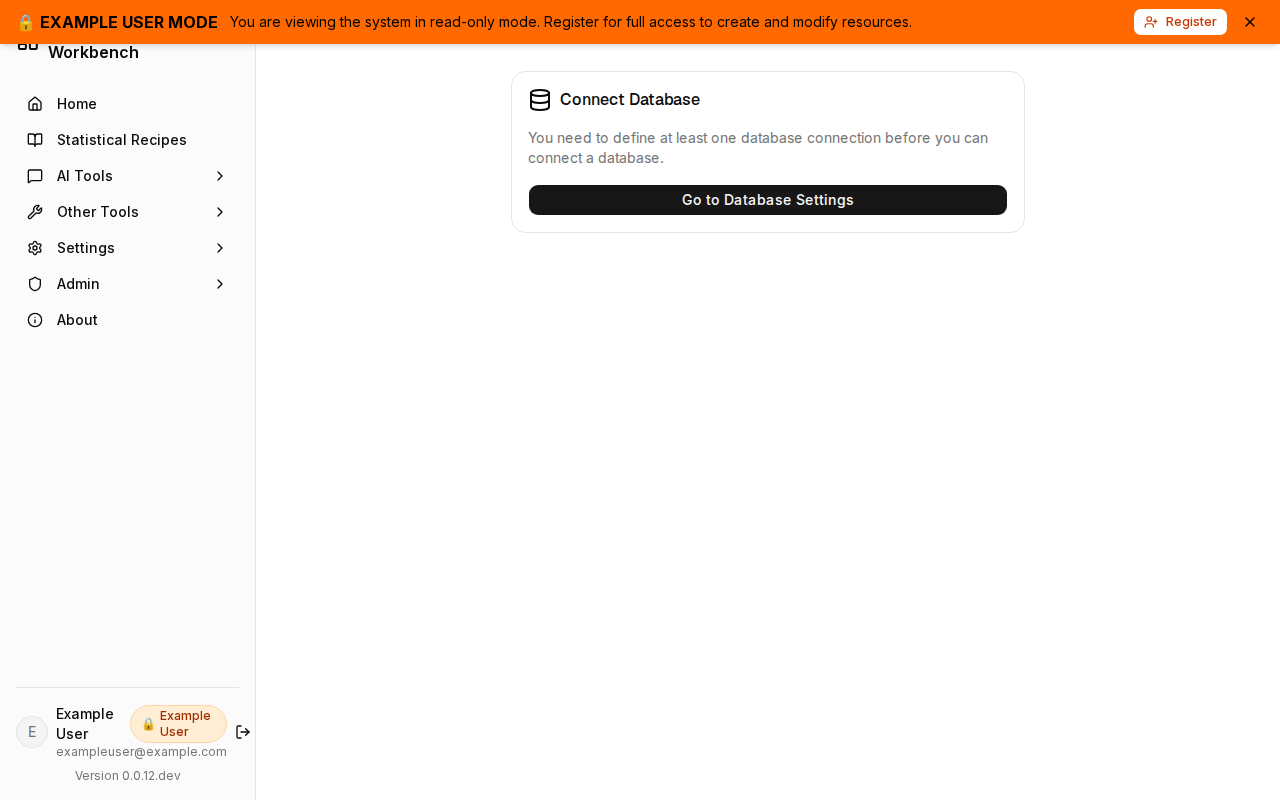
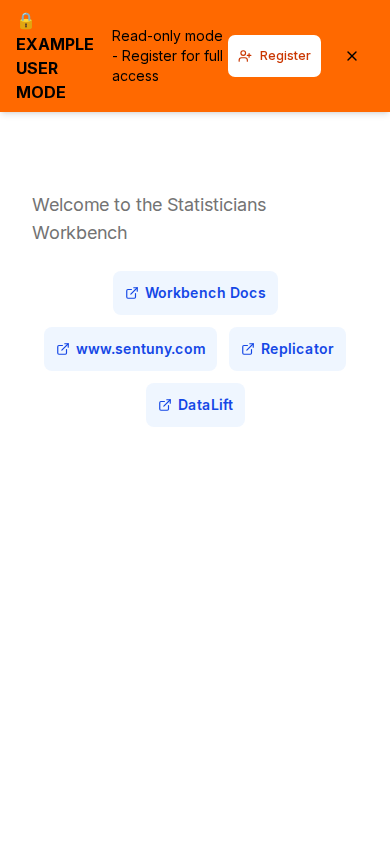
Built-in restricted account demonstrating the platform. UI shows an "Example User" badge and read-only indicators throughout — write actions are disabled. A return-to-admin banner lets admins switch back.
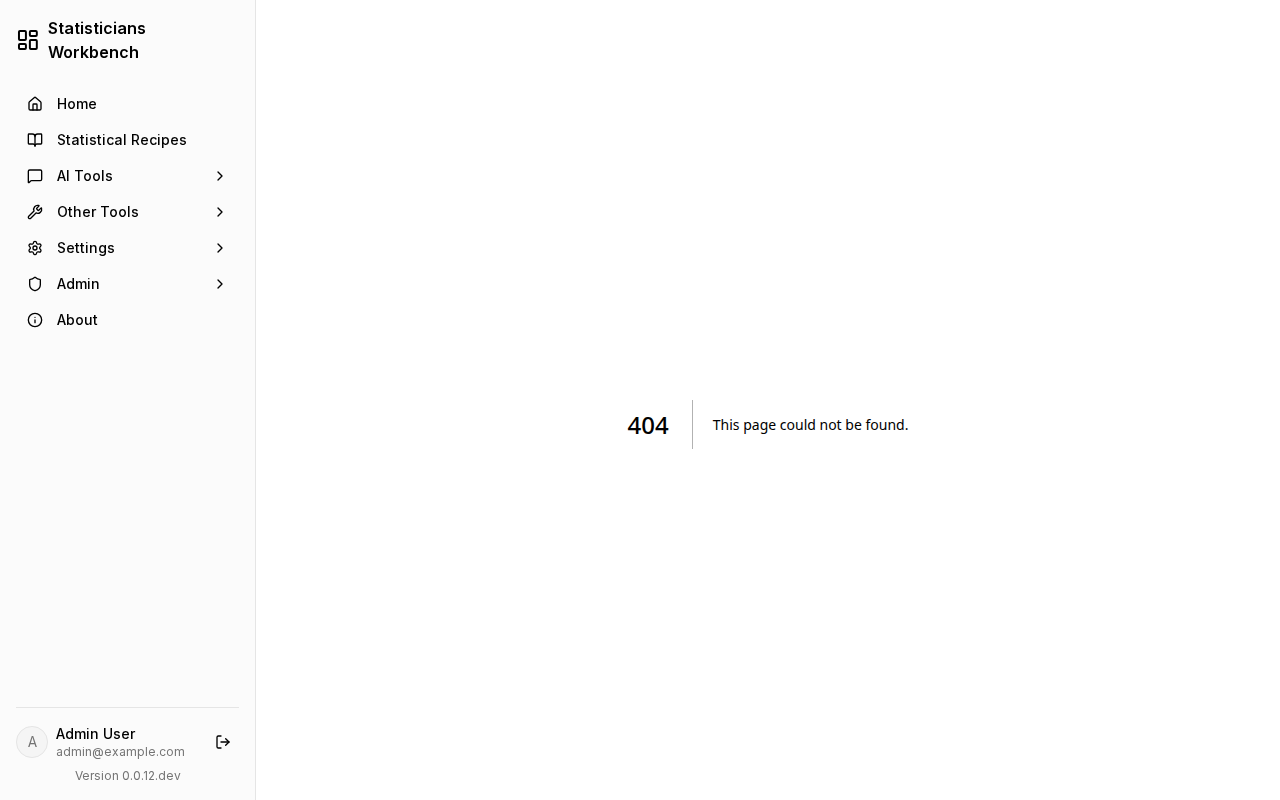
31. Error States
Persistent inline error messages — validation failures, permission denials, backend errors. Errors remain visible until the user takes corrective action. Not transient toasts.