Single user workstation
Group workstation
publicly visible workstation
All three operational setups need to do the basic setup.
Login as admin@example.com and change the password
Select the Settings → Global Settings page
Review and/or update all of these settings
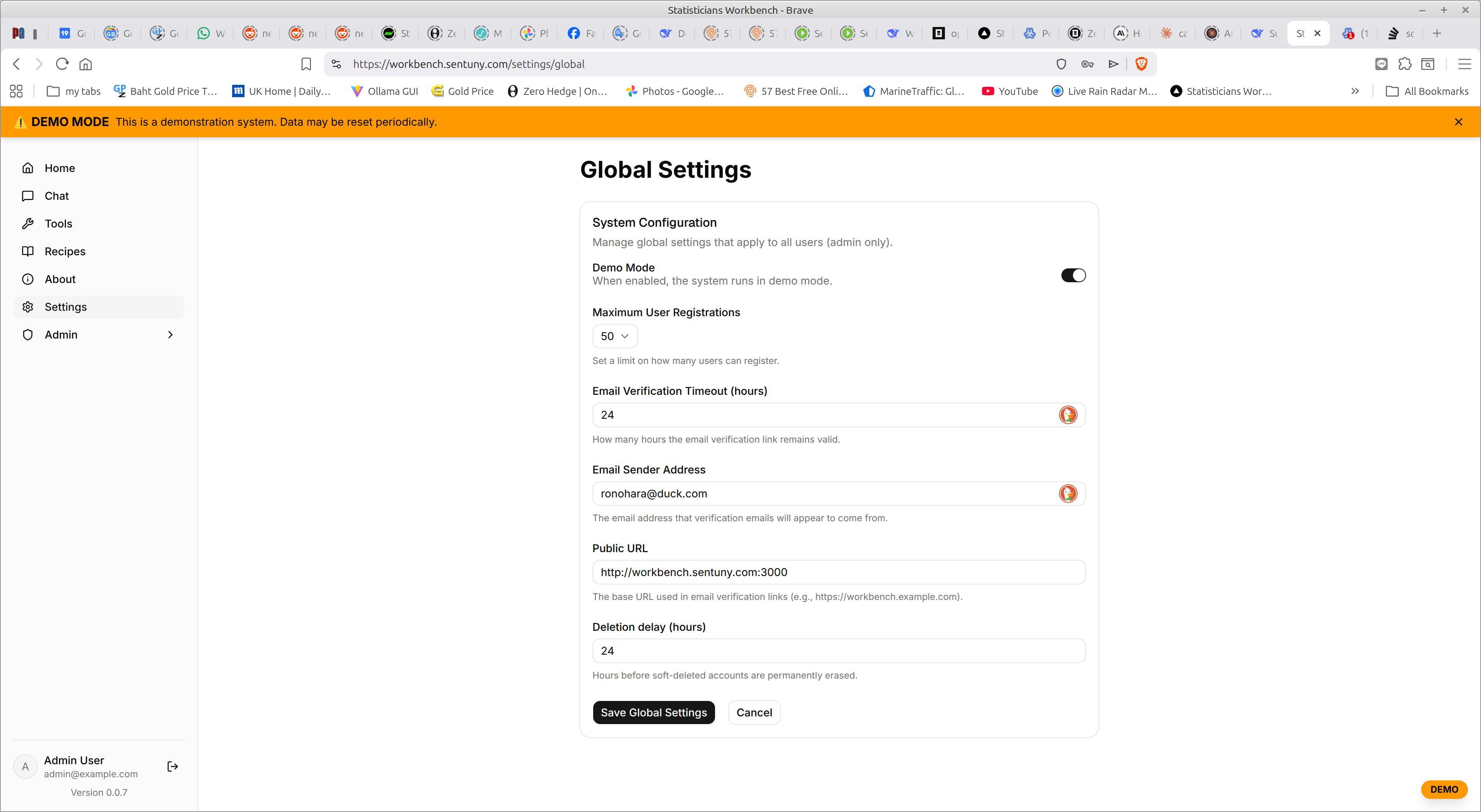
Post installation – single user
As a single user, you can just use the admin@example.com ID if you like, but it is better practice to register your email address .. respond to the verification email, or just go to the Admin → Users page and make it an Admin, Verified.
a
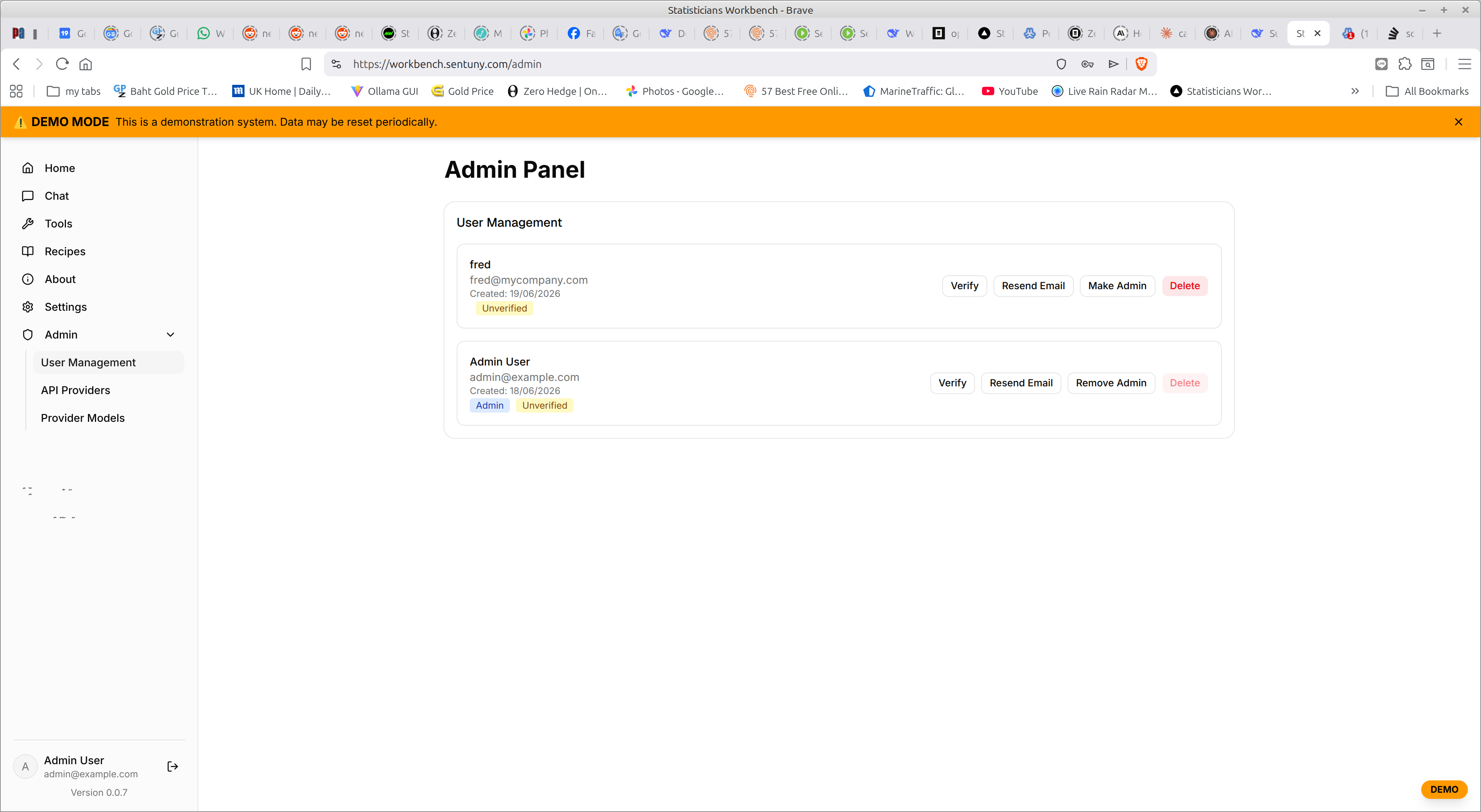 nd
get BCC on all emails that go out.
nd
get BCC on all emails that go out.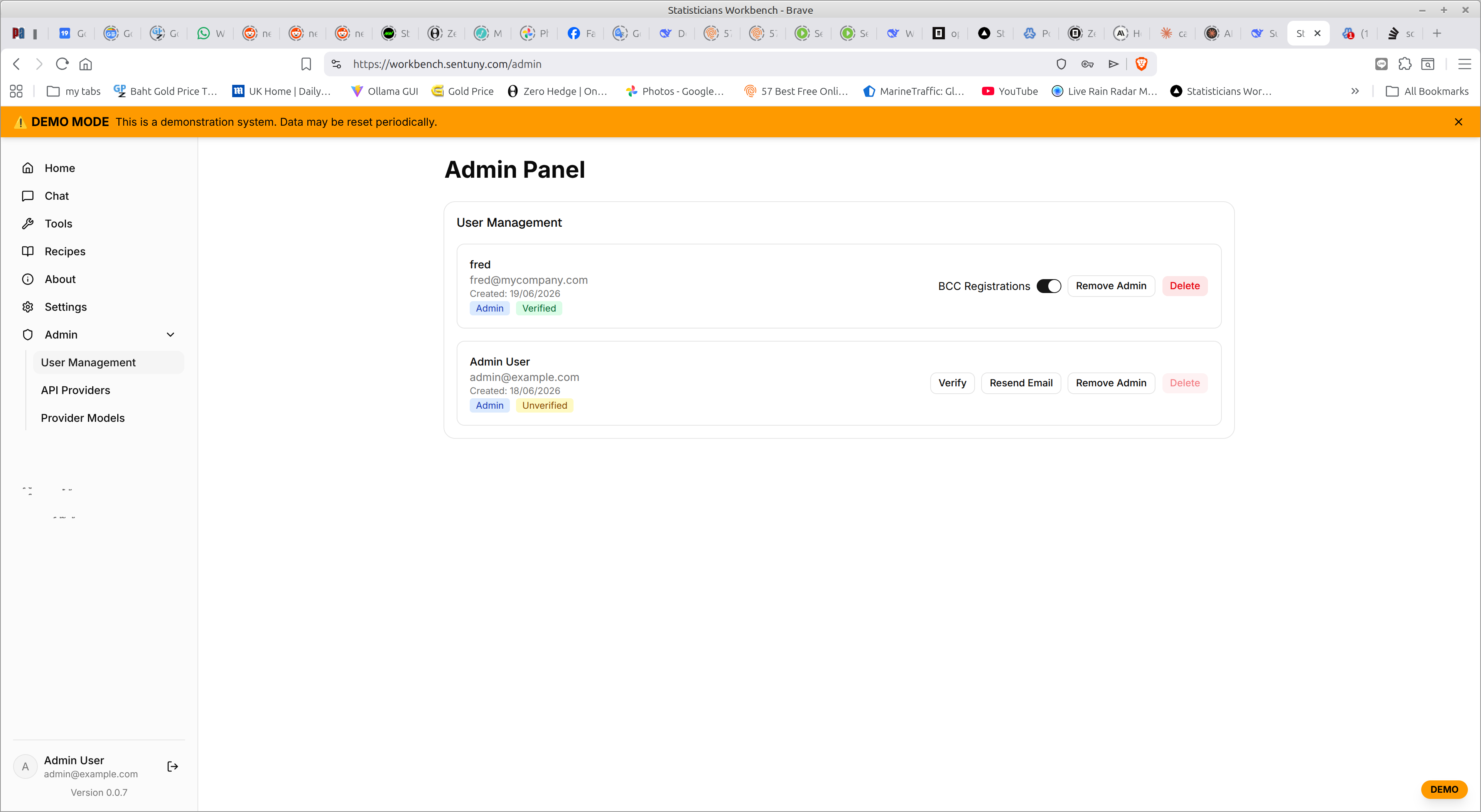
Post installation – group workstation
The same tasks for the Single user workstation apply to a small group workstation But you might decide to register a number of your users emails for them. The only issue with that, is that letting them self register avoids you (as administrator) selecting a password for the user, and then them needing to change it
You also need to install the relevant scheduling task for automated client registration cleanup
Post installation – public workstation
The same tasks for the Single user workstation apply to public workstation, BUT you will need to do the specialist IT work for
establishing the DNS host name
Installing a reverse proxy like NGIX
getting a httos certificate for a secure connections
Installing performance monitoring and automated restart
attack detection / suppression software
Post installation – ongoing configuration options
The workbench installer pre-populates its internal configuration with quite a few AI Provider definitions. You almost certainly want to review the information … and disable all the providers that you don’t want to use. That stops them being offered to regular users for chat or backend usage.
Admin – AI Providers
Select Admin → AI Providers
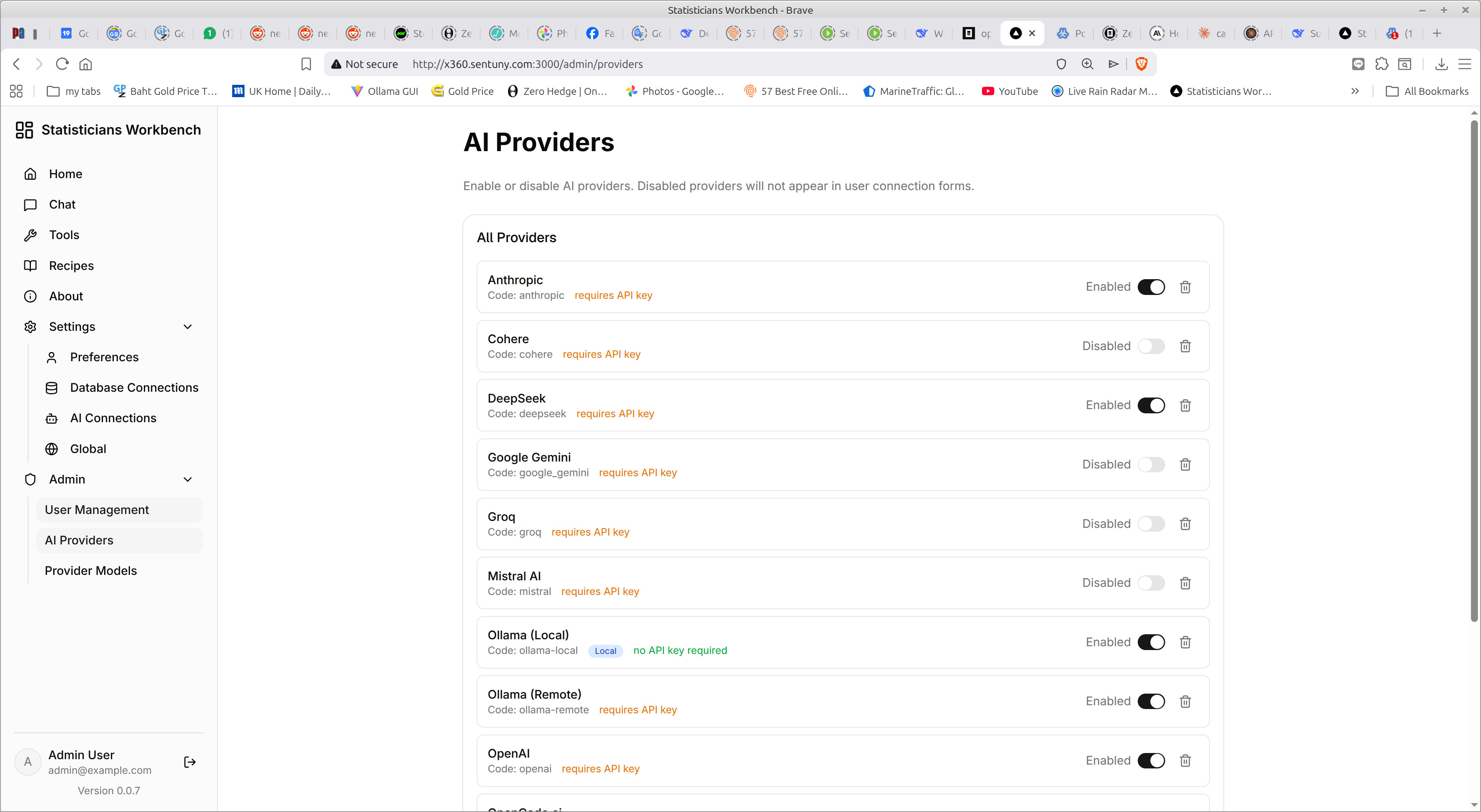
At this point there are no known models for any AI Provider. But once any user saves an AI connection that they intend to use, the list of models for that provider are captured and recorded. You can manage the models once they have been discovered.
Admin – Provider models
Once any AI provider has been defined by a user in an AI connection, the workbench will have discovered the models offered by that AI Provider. By default, any of them can be selected by a user for the work they want to do.
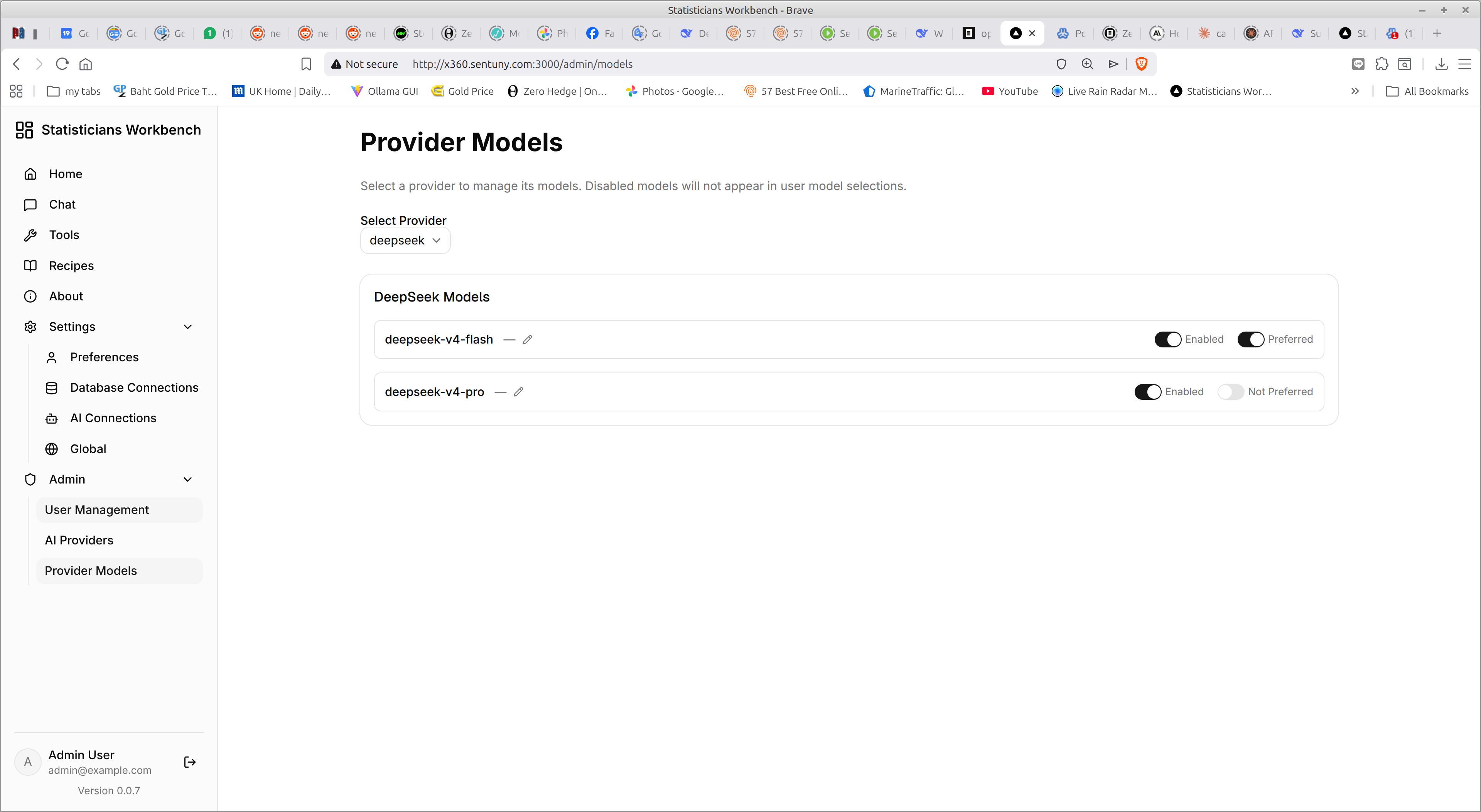
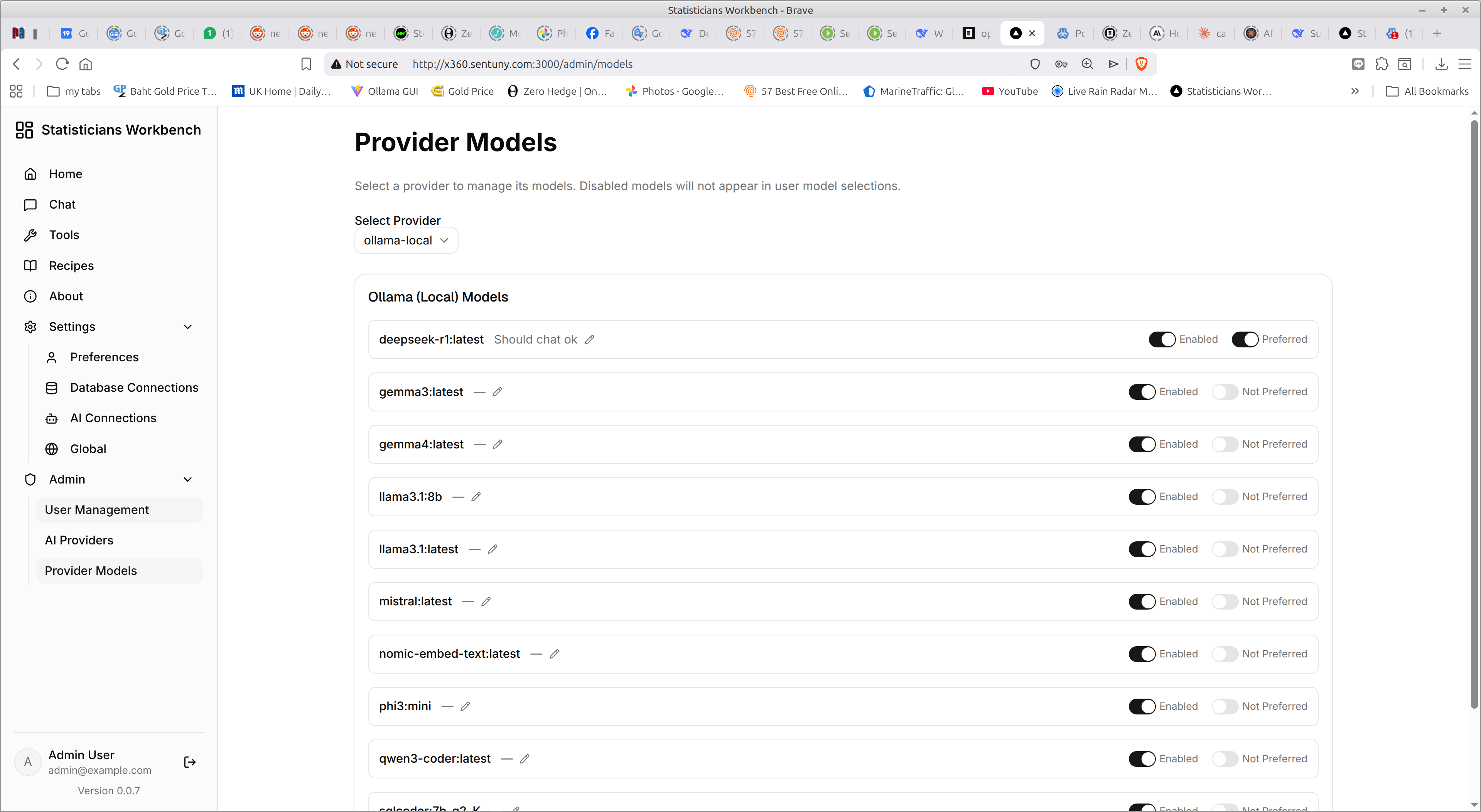
But an Admin, may want to restrict some models and suggest some models as preferred. This is managed on the Admin → Provider Models page
First you identify the AI Provider you are interested in – and the known models for that provider can then be adjusted .. some providers like DeepSeek offer a small number of models (two), others like OpenRouter offer hundreds of models.
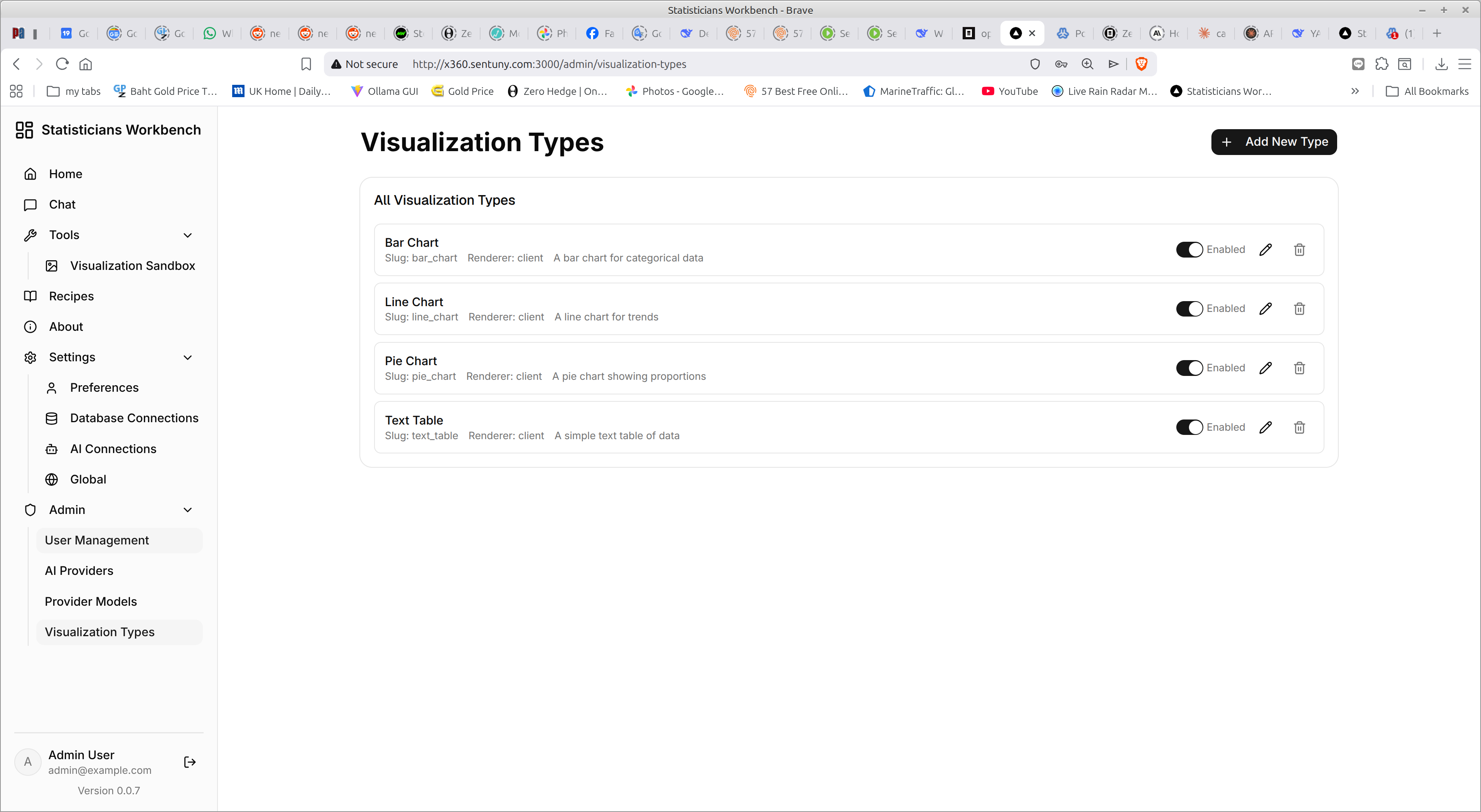
Admin – Visualisation types
- ;padding-top:0"> ← Back to Table of Contents